How to Lock Apps on iPhone with a Passcode, Face ID, or Touch ID

 Discover a Free Education Video App for Kids
Pastory uses AI to personalize educational video content based on your child’s interests and personality. Safe, engaging, and built for curious young minds. Sign up now to stay updated and enjoy early access with a free trial
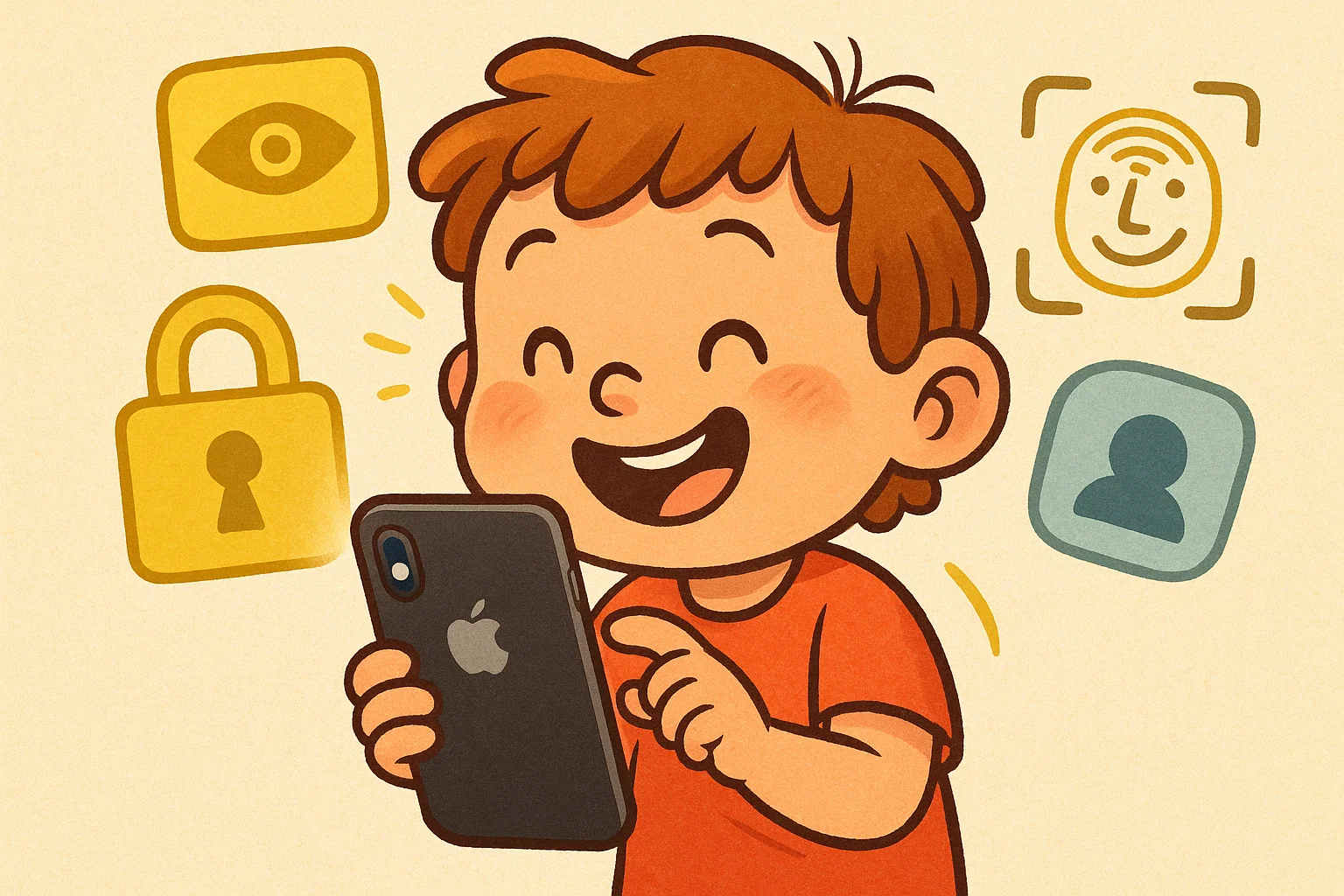
In the modern digital landscape, the iPhone has evolved from a simple communication tool into a comprehensive vault for personal data, financial information, and professional assets. Protecting sensitive applications on your iPhone is no longer just a technical preference; it is a basic step for maintaining digital privacy.
Whether you are a parent managing a child’s screen time or simply want to keep private information away from others, Apple now offers several built-in ways to protect what is installed on your device. Starting with iOS 18, Apple added native app locking and hiding features that remain available in later iOS versions. Users can now protect selected software with Face ID, Touch ID, or the device passcode, reducing the need for Screen Time or Shortcuts workarounds.
This guide explains how to lock, hide, unlock, and restrict iPhone applications using built-in iOS features.
Key Takeaways
- iOS 18 introduced native locking features for installed applications, and they remain available in later versions such as iOS 26.
- Face ID, Touch ID, or a passcode can be used to open protected items.
- Hiding an application locks it and moves it to the Hidden folder at the bottom of the App Library.
- Hidden apps are not completely invisible. Their names may still appear in Settings, Screen Time, Battery usage, and App Store purchase history.
- Screen Time remains one of the best options for older iOS versions and parental controls.
- Guided Access keeps the iPhone inside a single application, which is useful when lending the device to someone else.
Fastest Way to Lock an App on iOS 18 or Later
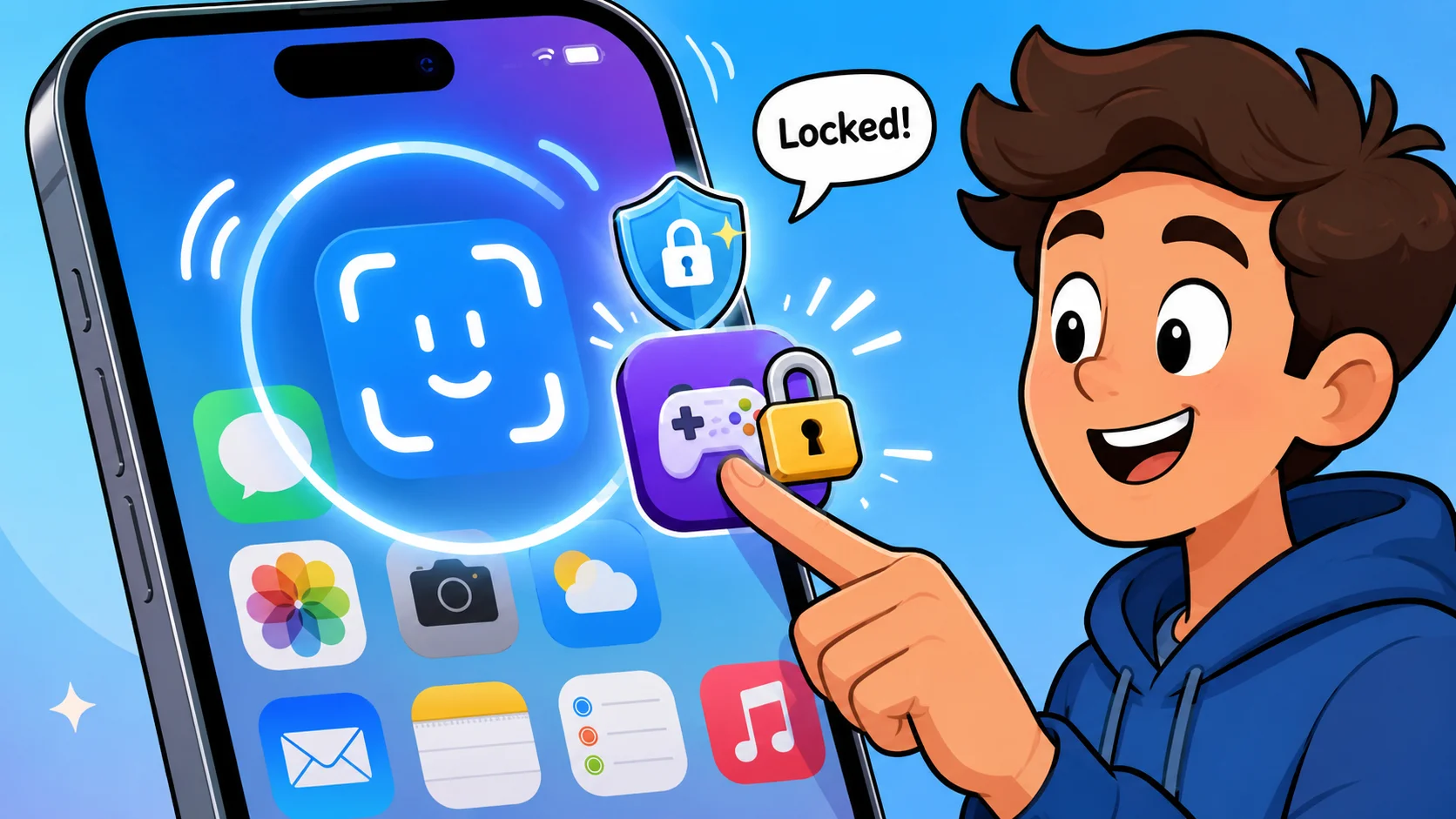
In iOS 18 or later, you can protect an application by touching and holding its icon on the Home Screen. When the Quick Actions menu appears, tap Require Face ID, Require Touch ID, or Require Passcode to add an extra authentication step.
This means someone can use your unlocked iPhone without being able to open apps you have protected.
Best Option for Older iOS Versions
For users on iOS 17 or earlier, system-level per-application locking is not available. On older versions, Screen Time, Guided Access, and built-in security options inside individual programs are the most practical alternatives.
Screen Time can restrict access with a separate Screen Time passcode, while Guided Access can temporarily keep the iPhone inside one screen. Some messaging, finance, and password-management tools may also include their own Face ID or Touch ID protection.
Locking, Hiding, Unlocking, and Restricting Applications
Understanding the difference between these options is important for effective device management.
Locking keeps the icon visible but requires authentication to open the protected item. Hiding removes it from the Home Screen and places it in the Hidden folder in the App Library. Restricting access through Screen Time or parental controls allows broader management of content, usage time, purchases, and age-appropriate access.
How to Lock Apps on iPhone in iOS 18 or Later
iOS 18 introduced a much more streamlined way to protect individual applications on iPhone. This native feature lets you use Face ID or Touch ID, with the iPhone passcode available as a fallback in most situations.
Once enabled, the iPhone requires authentication each time the protected software is opened. After you quit it, the lock returns automatically.
Lock Applications with Face ID
Face ID is the main biometric option on iPhone models that support it. This method is especially useful for banking services, messaging tools, photo storage, notes, health data, and password managers.
Apple states that the probability of a random person unlocking your iPhone with Face ID is less than 1 in 1,000,000, making it a strong protection option for personal data.
To use Face ID protection:
- Tap and hold on an app you want to lock and Select Require Face ID (or Require Touch ID on iPhone SE).
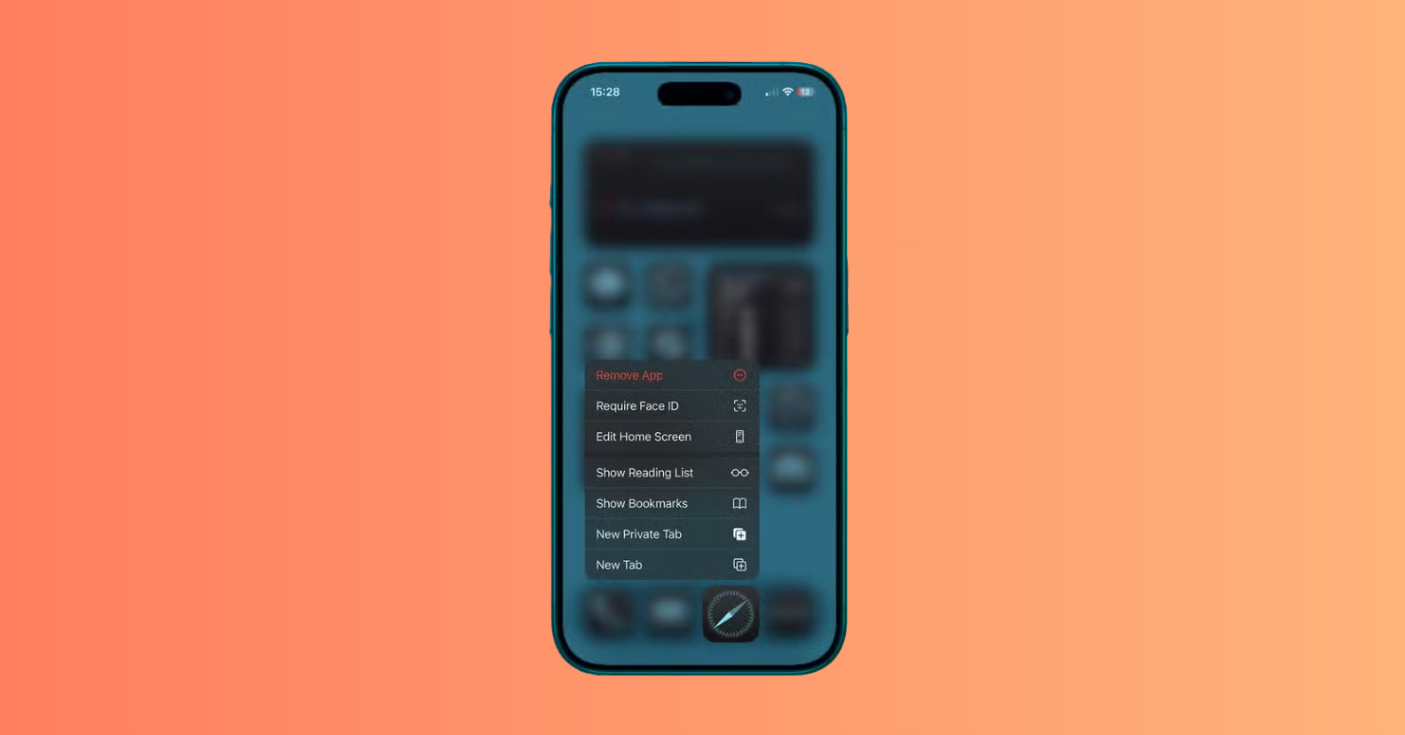
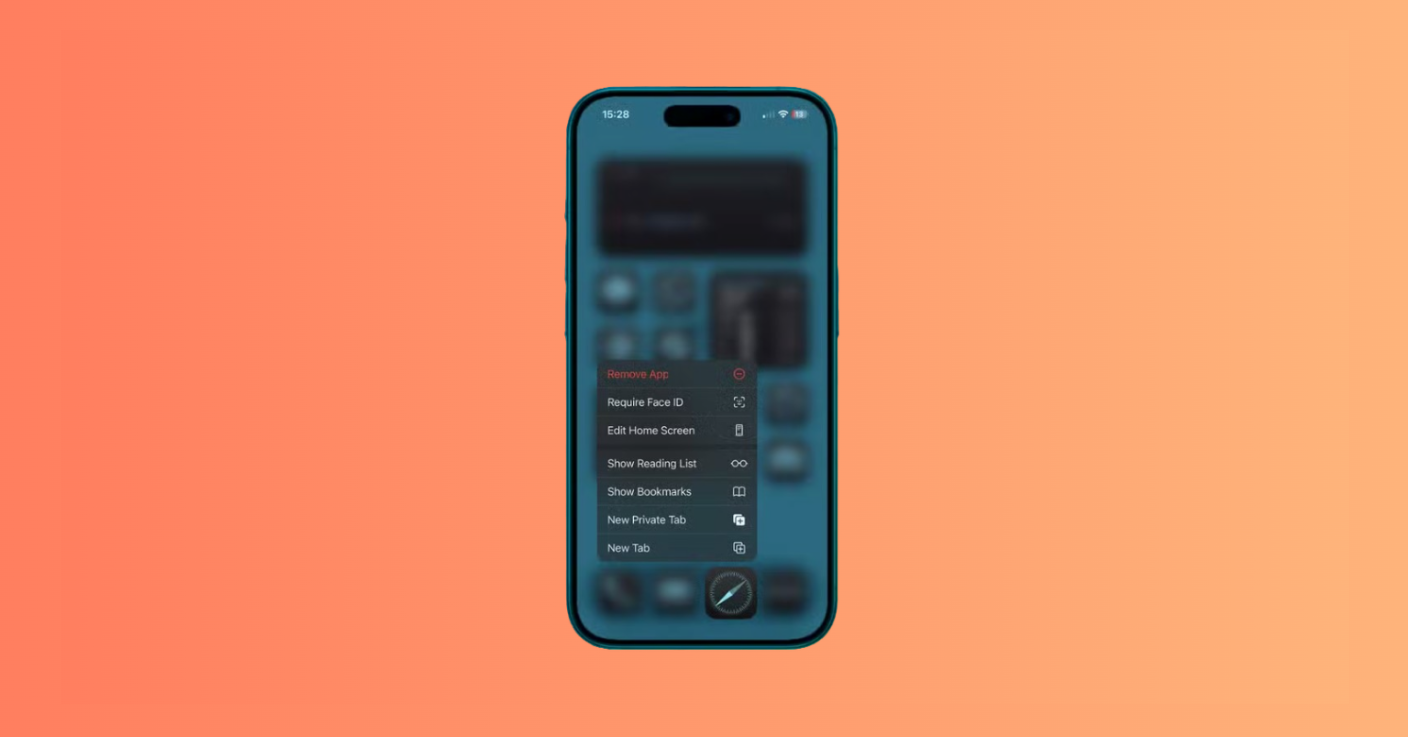
- Tap Require Face ID (or Require Touch ID) to confirm your decision.
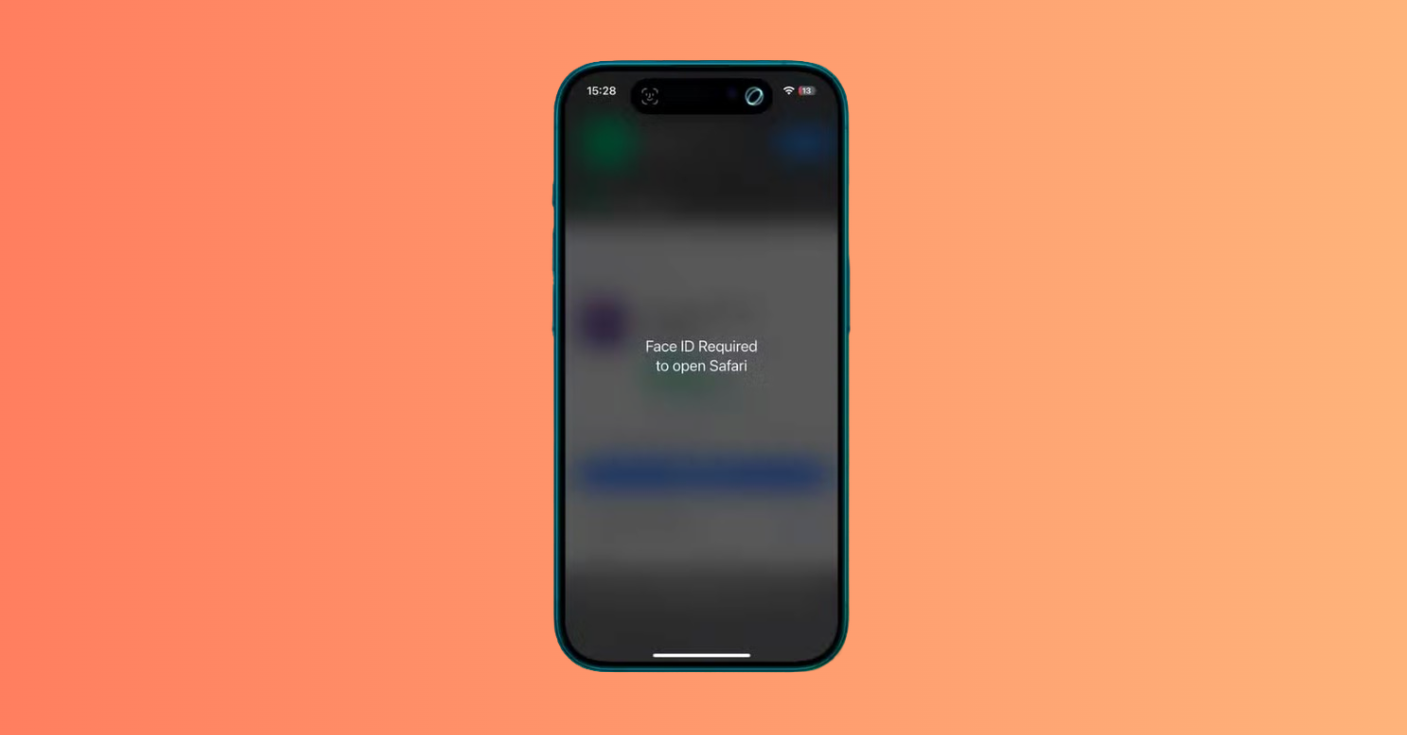
- When you try to open the app, it will try to authenticate using Face ID or Touch ID.
- If Face ID or Touch ID fails, you’ll be asked to enter your iPhone passcode.
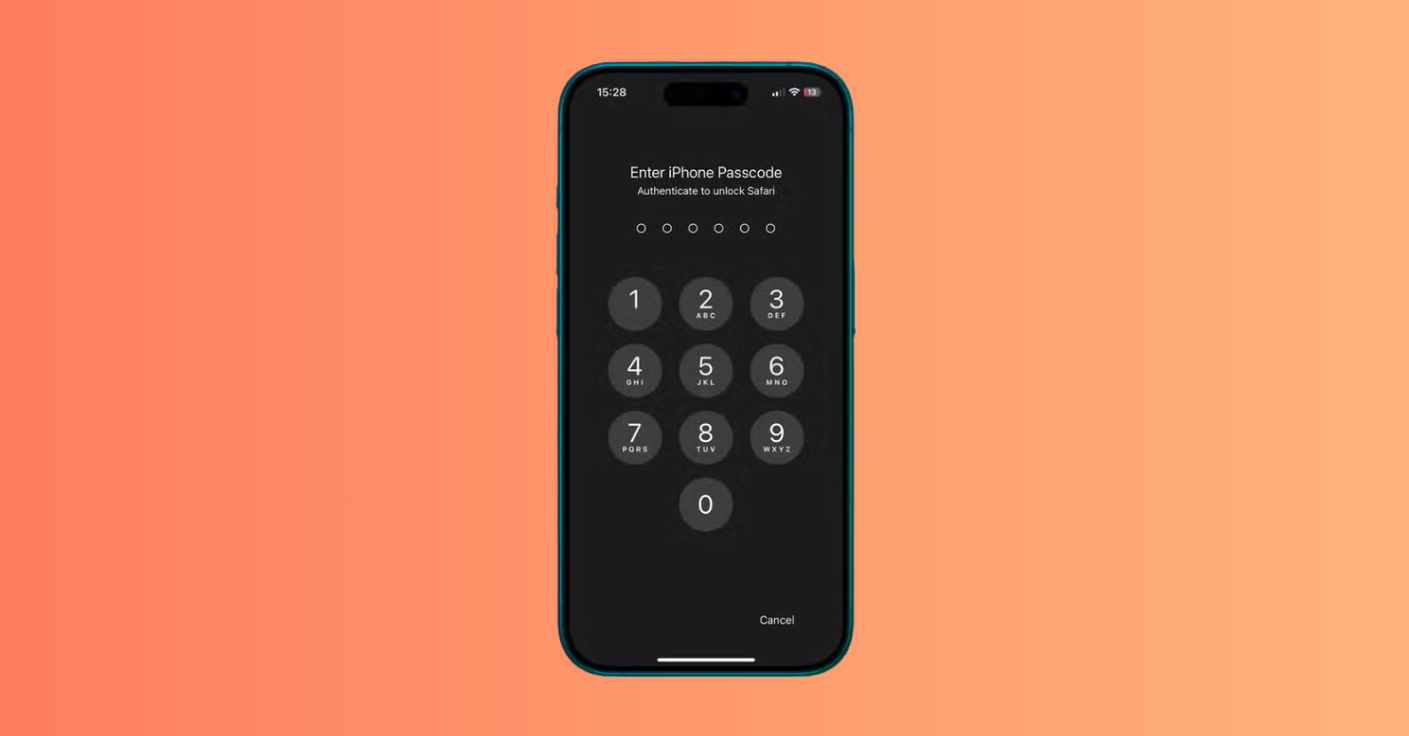
- Once authenticated by Face ID, Touch ID, or passcode, the app will open.
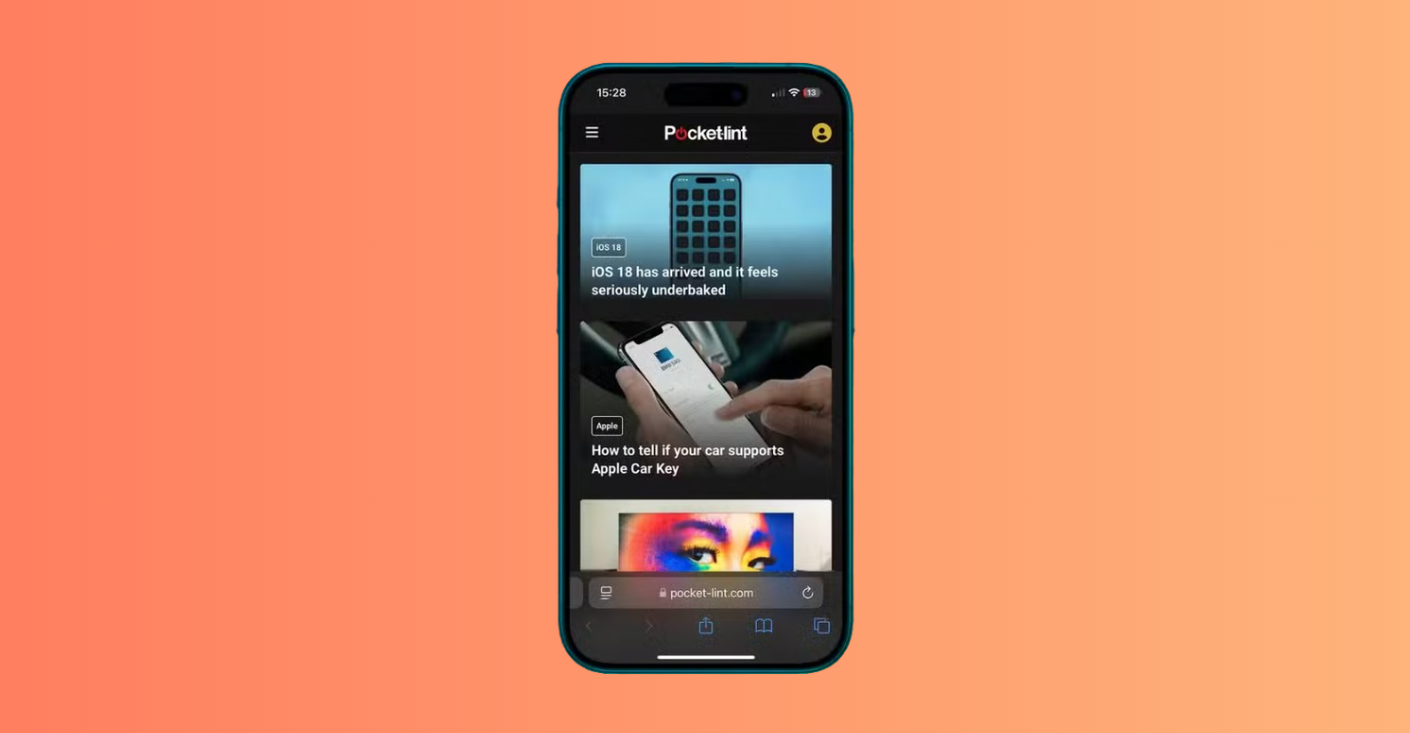
When you tap the icon later, iPhone asks you to authenticate with Face ID before opening the selected software.
Lock Applications with Touch ID
iPhone models with Touch ID use a nearly identical process for individual software protection.
To use Touch ID protection:
- Go to the Home Screen.
- Touch and hold the icon until the menu opens.
- Tap Require Touch ID.
- Tap Require Touch ID again to confirm.
- Authenticate with Touch ID.
This lets users with Touch ID models use the same basic locking workflow, where supported.
Passcode Fallback After Biometric Failure
If Face ID or Touch ID is unavailable, iPhone may ask for the device passcode, depending on your security settings. Apple does not let you create a separate password for each protected item; it uses Face ID, Touch ID, or the device passcode.
In some security-sensitive situations, such as when Stolen Device Protection applies, biometric authentication may be required without an immediate passcode fallback.
What to Protect First
Start with software that usually contains the most sensitive information:
- Banking and finance services: Protect account balances, transfers, and payment details.
- Photos and Files: Prevent unauthorized access to private media and documents.
- Messaging tools: Keep personal conversations confidential.
- Health-related software: Protect sensitive medical and wellness data.
- Password managers: Secure these because they can provide access to many other accounts.
- Email clients: Prevent access to password-reset links, private messages, and work communication.
How to Hide and Lock Apps on iPhone in iOS 18 or Later
For a higher level of privacy, iOS 18 and later let you hide selected applications while locking them at the same time. This dual-layer protection removes the icon from the Home Screen and requires authentication before the software can be opened.
This is particularly useful for private tools you do not want someone to notice when you show something on your iPhone to a friend.
Hide and Require Face ID Option
After you tap Require Face ID, you may also see Hide and Require Face ID for eligible downloaded software. Choosing this option moves the selected item into the Hidden folder in the App Library.
Required Actions:
- Tap and hold the app you want to hide and Select Require Face ID (or Require Touch ID if you’re using an iPhone SE).
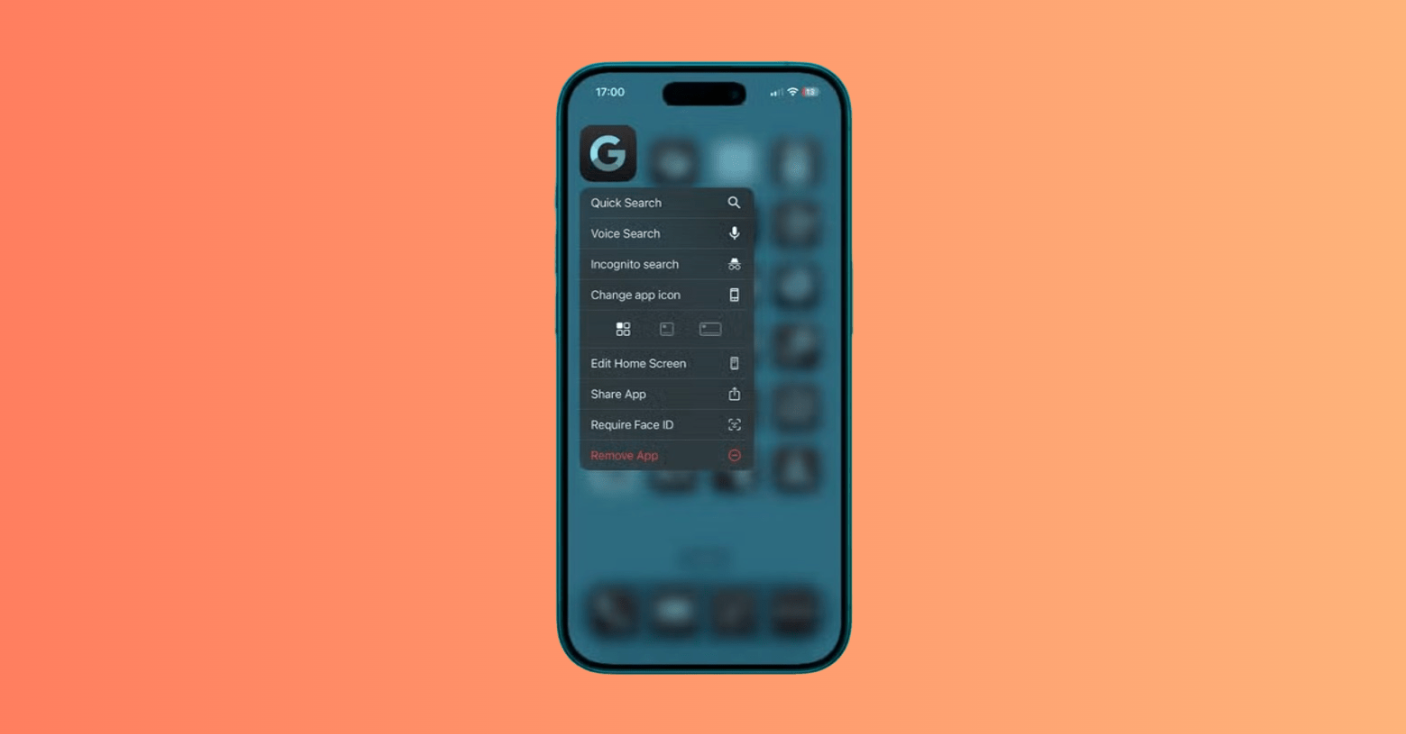
- Tap Hide and Require Face ID.
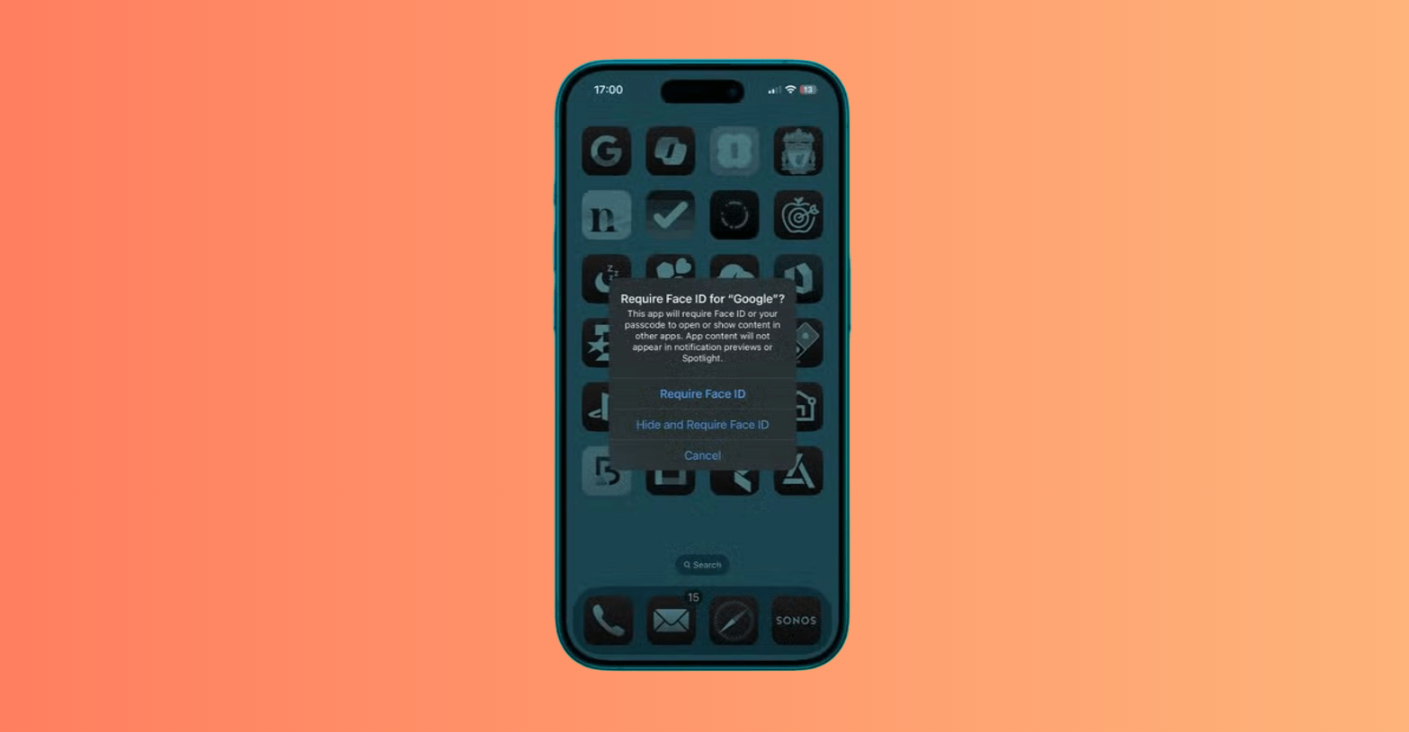
- If Face ID or Touch ID doesn’t work twice, you’ll be prompted to enter your passcode instead.
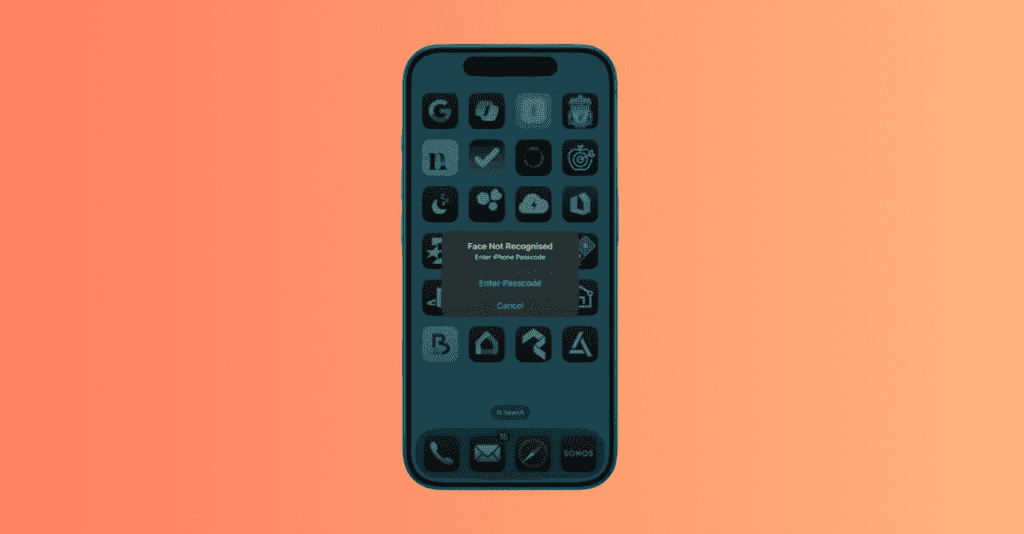
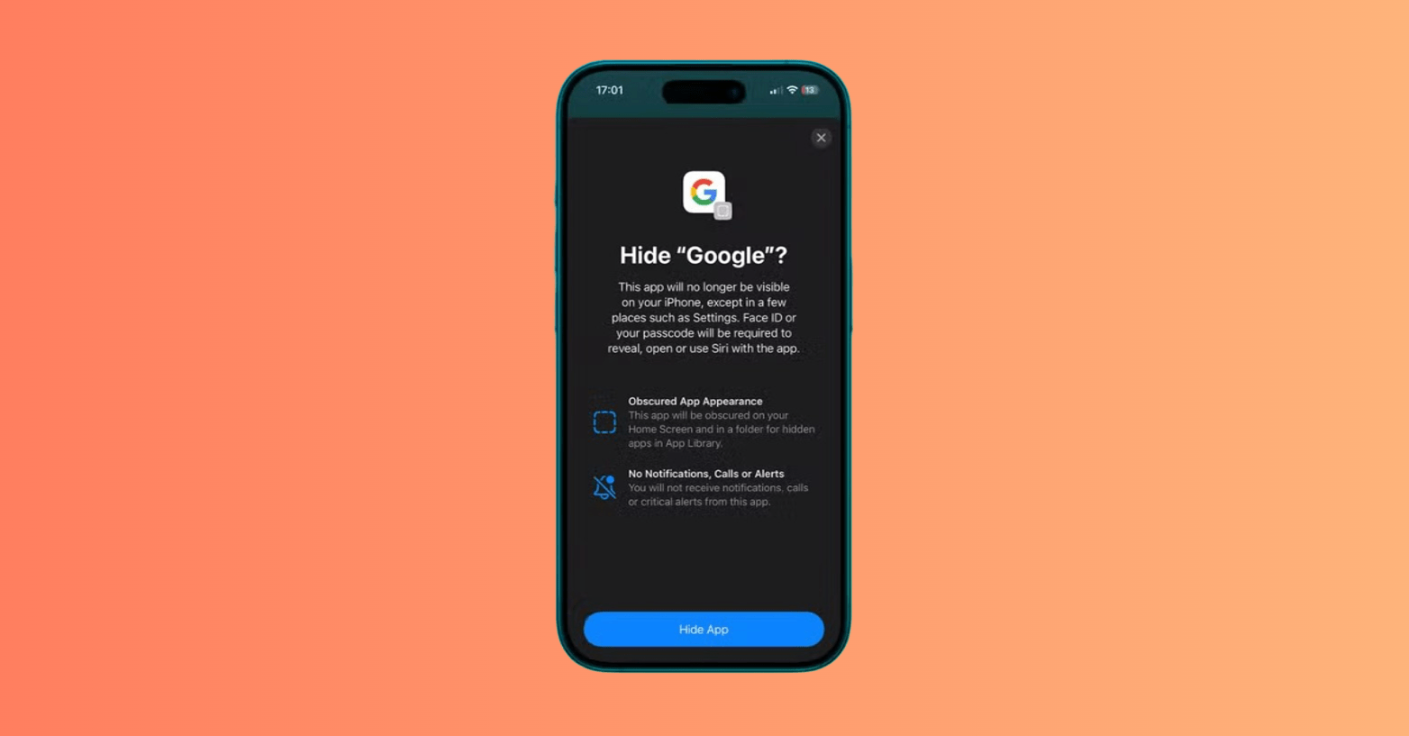
- Once you’ve authenticated by Face ID, Touch ID, or passcode, you’ll be asked to confirm your decision. Tap Hide App to confirm.
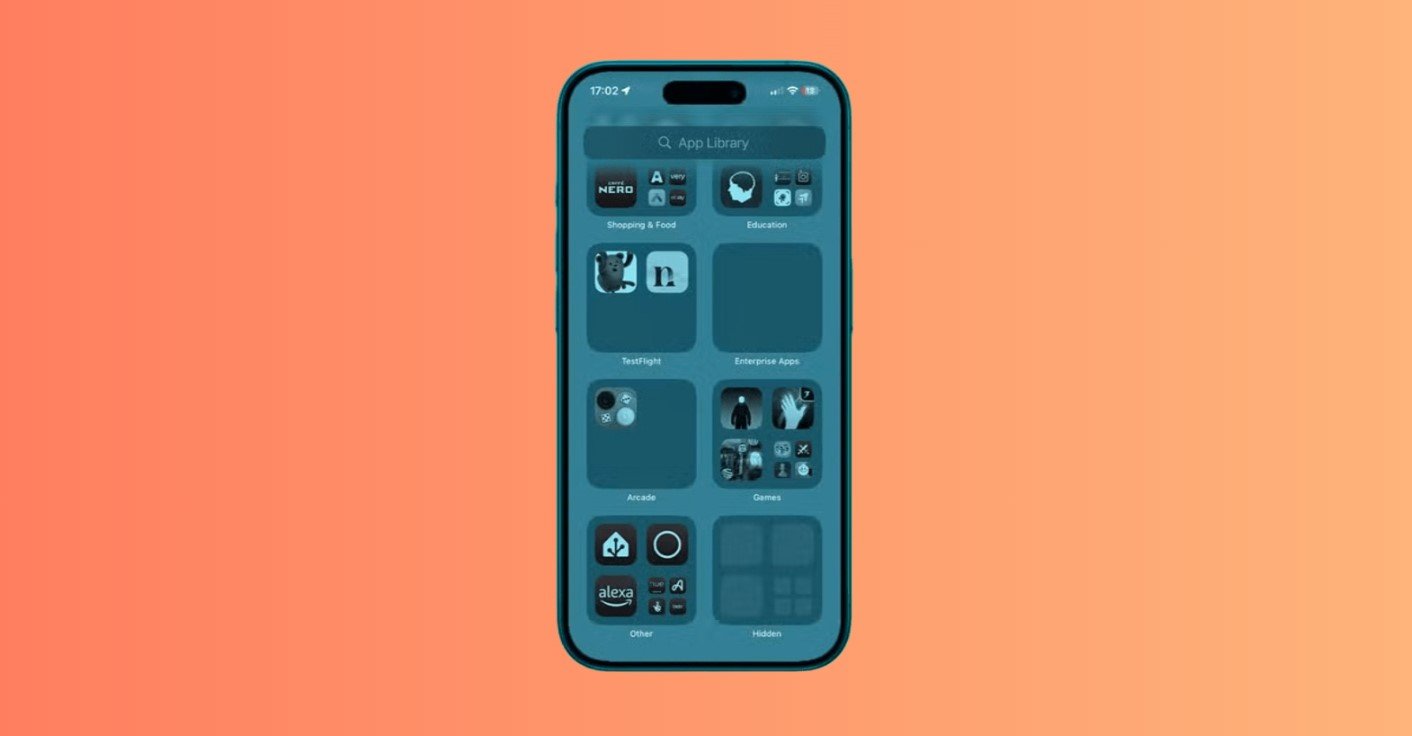
- Scroll to the bottom of the screen to the Hidden folder, which should not show any app icons, and Tap the Hidden folder and authenticate with Face ID, Touch ID, or passcode.
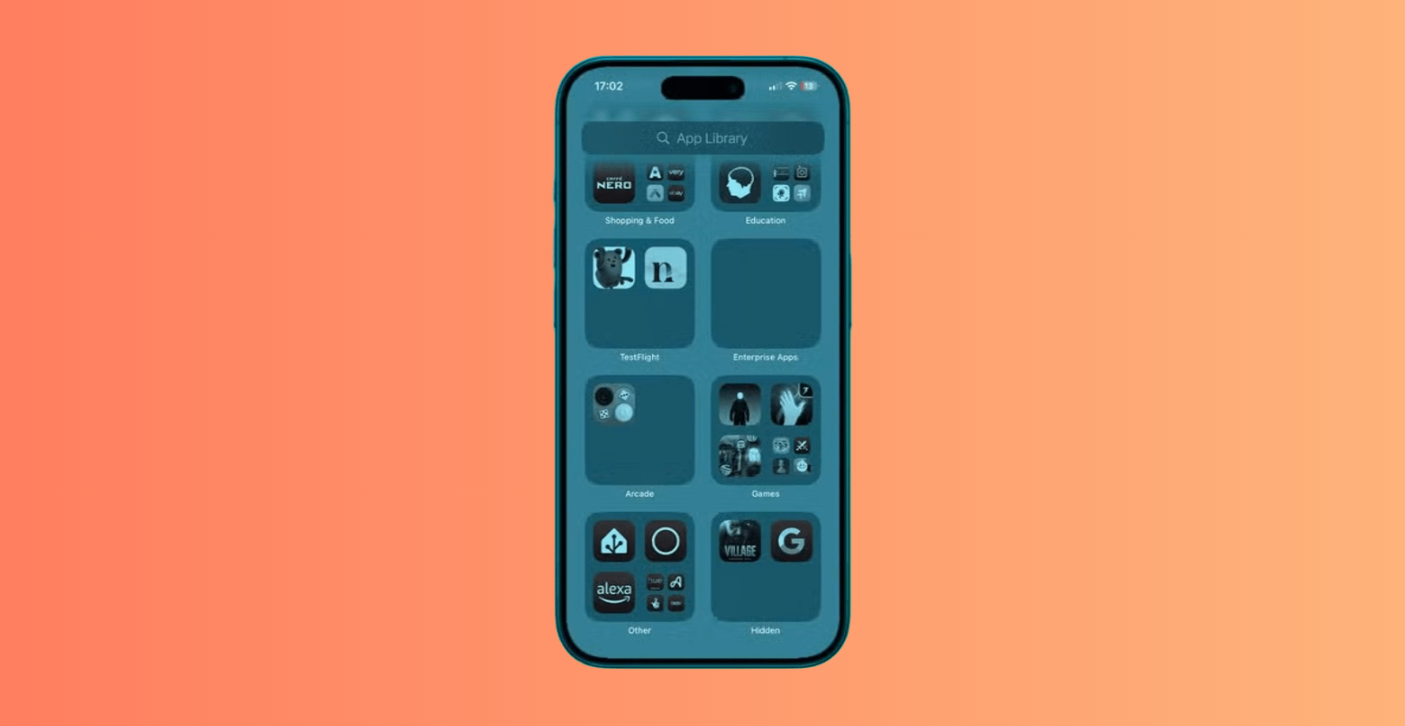
- Your hidden apps should now be visible.
Important: software that comes installed with iOS cannot be hidden. Only applications downloaded separately from the App Store can be hidden. In the EU, items set as the default web browser or default marketplace also cannot be hidden.
Hidden Folder in App Library
The Hidden folder is located at the bottom of the App Library. You must tap the folder and authenticate with Face ID, Touch ID, or a passcode before the hidden items become visible.
Hidden software is not completely invisible. Names may still appear in places such as:
- Settings > Apps > Hidden Apps
- Screen Time
- Battery usage
- App Store purchase history
Also note that locking or hiding applies only to that device. The protected or hidden status does not sync through iCloud, so you need to set it up separately on each iPhone or iPad you use.
Locking Versus Hiding
| Feature | Locking | Hiding |
| Visibility | Visible on the Home Screen | Removed from the Home Screen and moved to the Hidden folder |
| Authentication | Face ID, Touch ID, or passcode | Face ID, Touch ID, or passcode |
| Notifications | Content is hidden from notification previews and some other areas | Notifications and previews are more restricted |
| Siri/Search | Content is hidden from search and Siri suggestions | The icon is hidden from the Home Screen, but the name may still appear in some system areas |
| Best For | Daily-use tools such as Mail, banking, or messaging | More private downloaded software |
How to Unlock Apps on iPhone in iOS 18 or Later
As your privacy needs change, you may want to remove protection from selected software. The process is similar to the initial setup.
Remove Lock
Required Actions:
- Tap and hold the app that you want to unlock and Select Don’t Require Face ID (or Don’t Require Touch ID on iPhone SE).
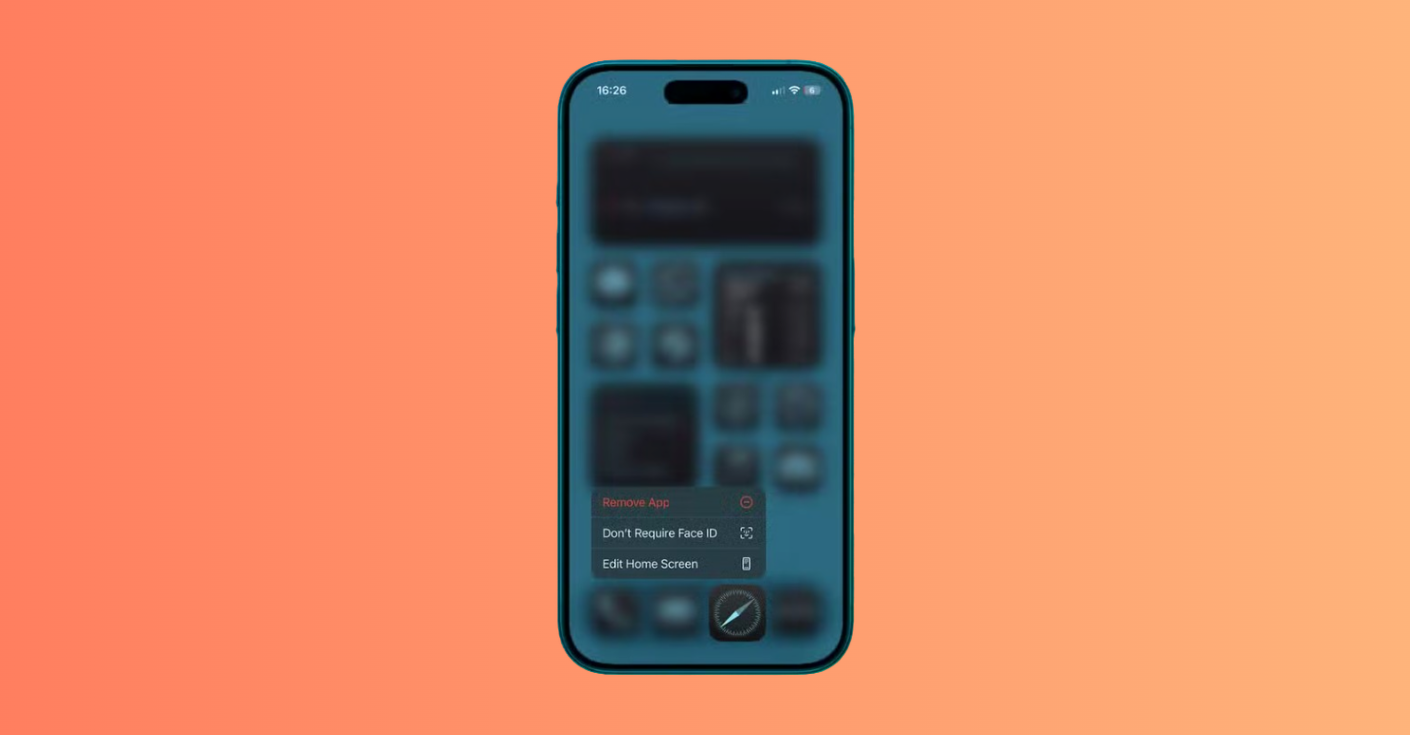
- If this fails, you’ll be asked to try again.
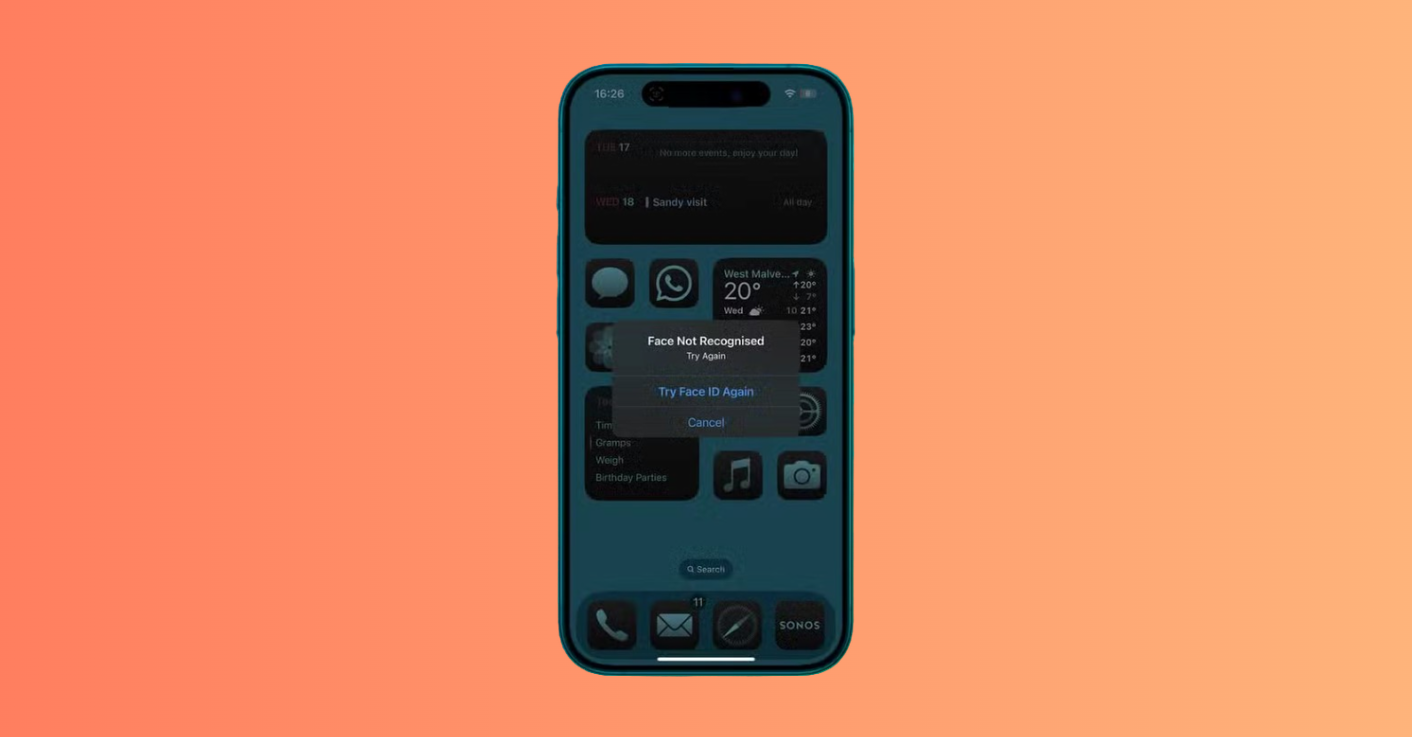
- If it fails a second time, you’re given the option to enter your passcode instead.
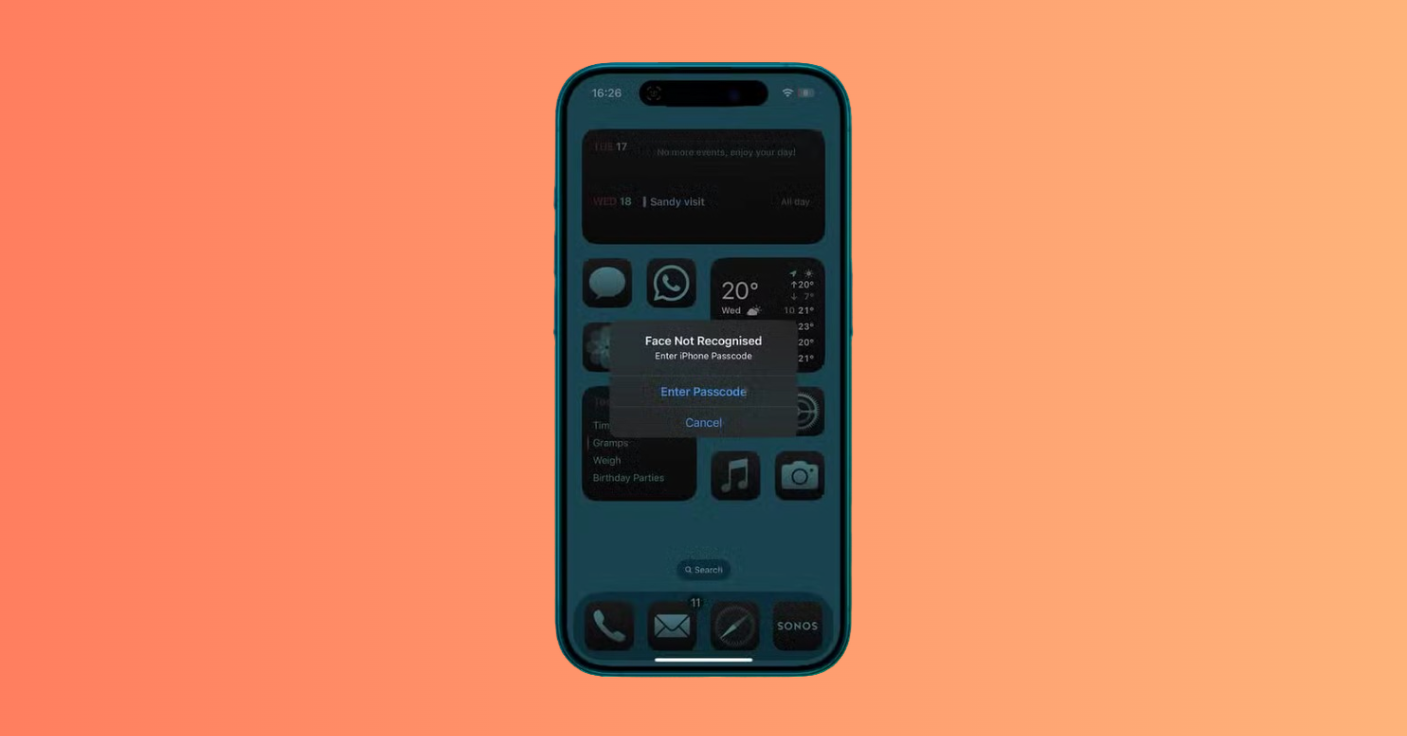
- Once you’ve authenticated with Face ID, Touch ID, or passcode, your app is unlocked and can be opened without requiring authentication.
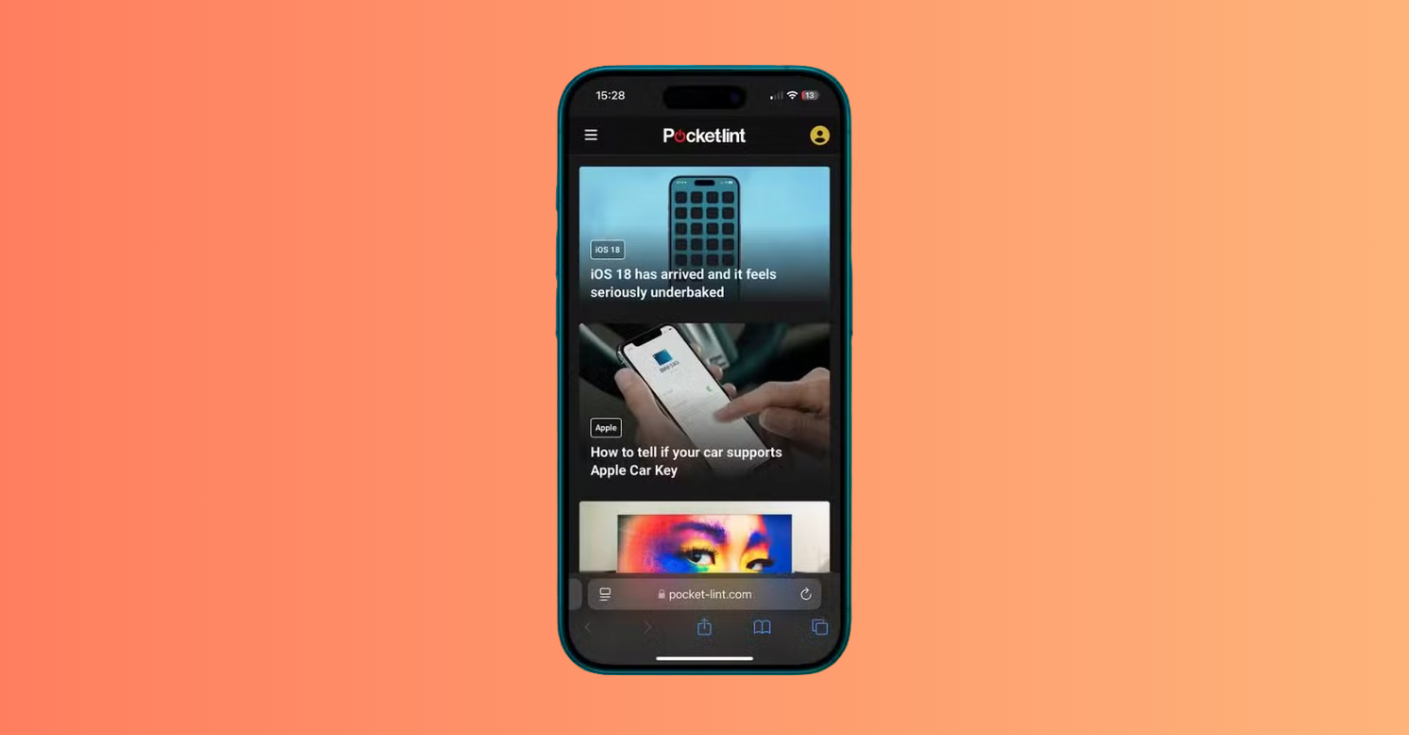
After this, the selected software can be opened normally.
Unhide Software and Add It Back to the Home Screen
Required Actions:
- Scroll to the bottom and tap the Hidden folder.
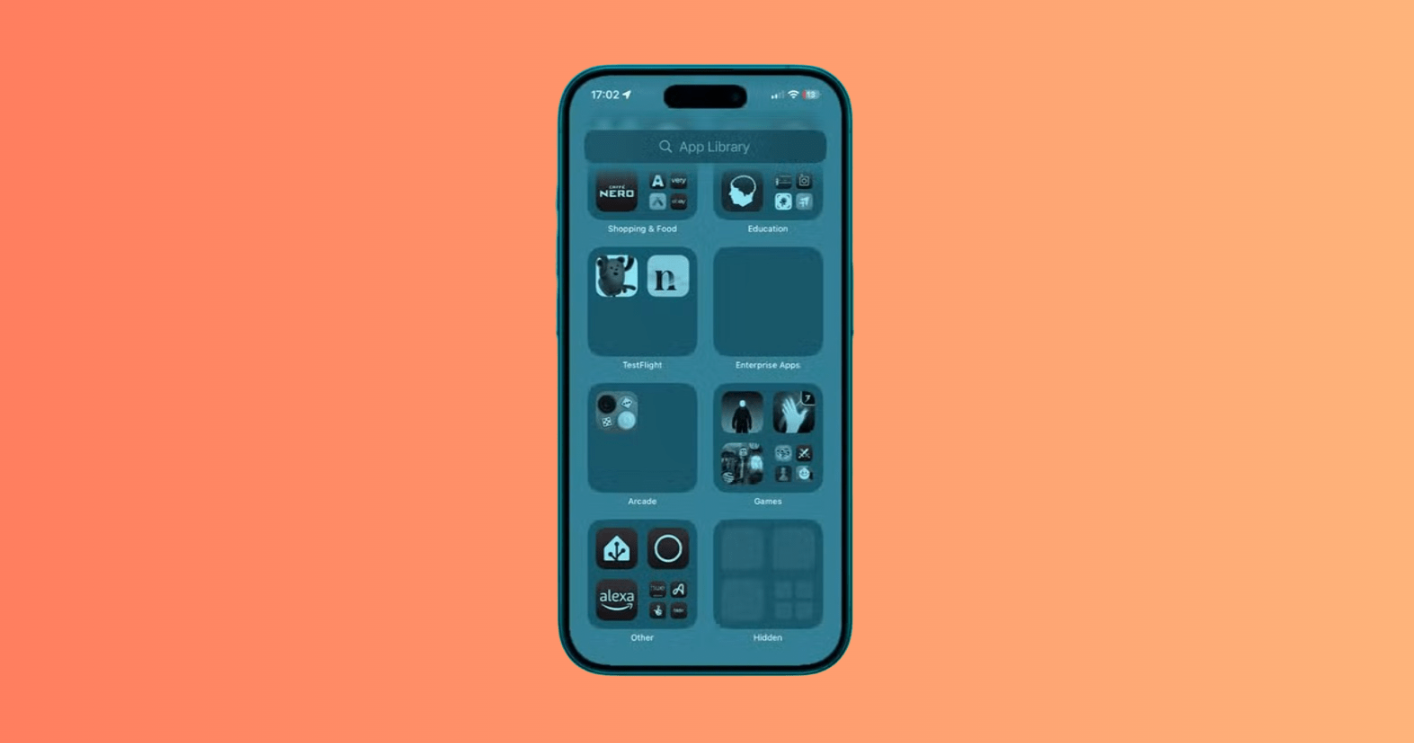
- Authenticate using Face ID, Touch ID, or passcode.
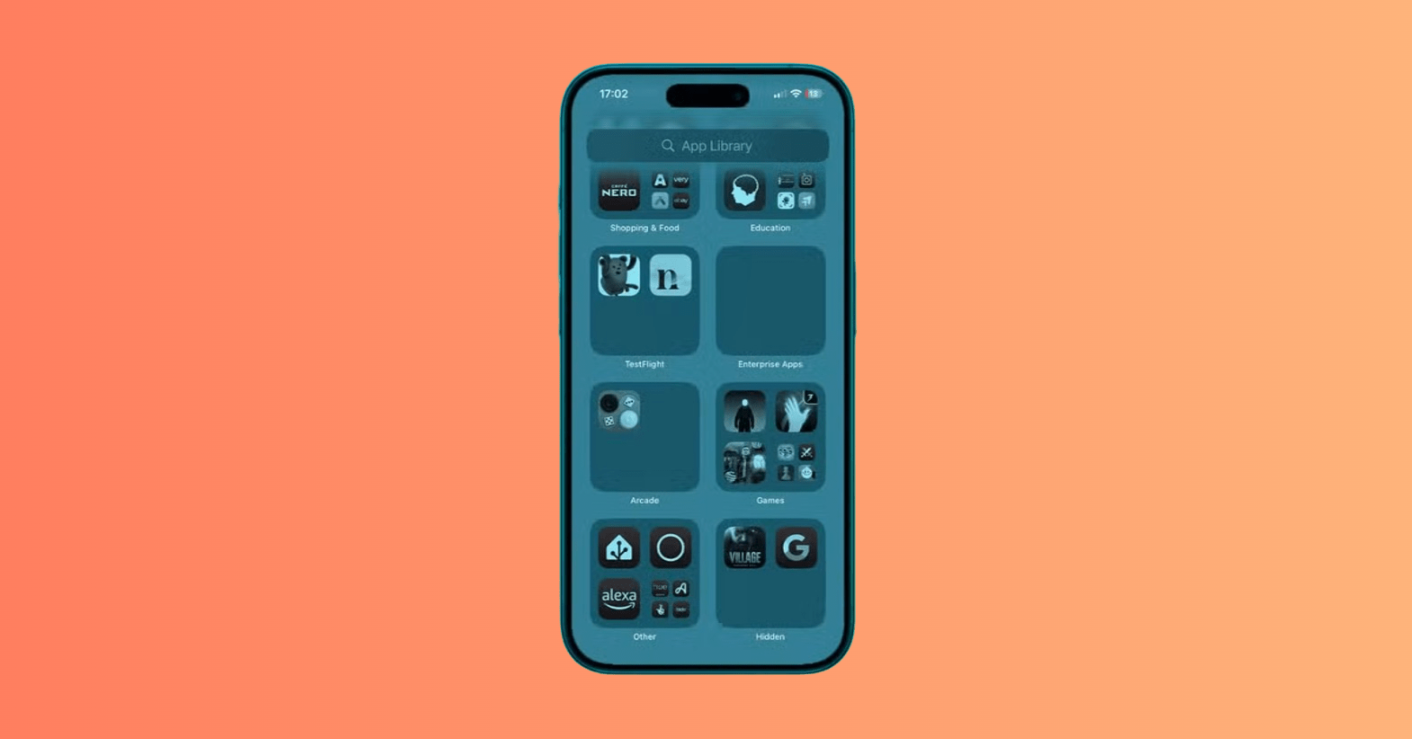
- Tap and hold the app you want to unhide and Select Don’t Require Face ID.
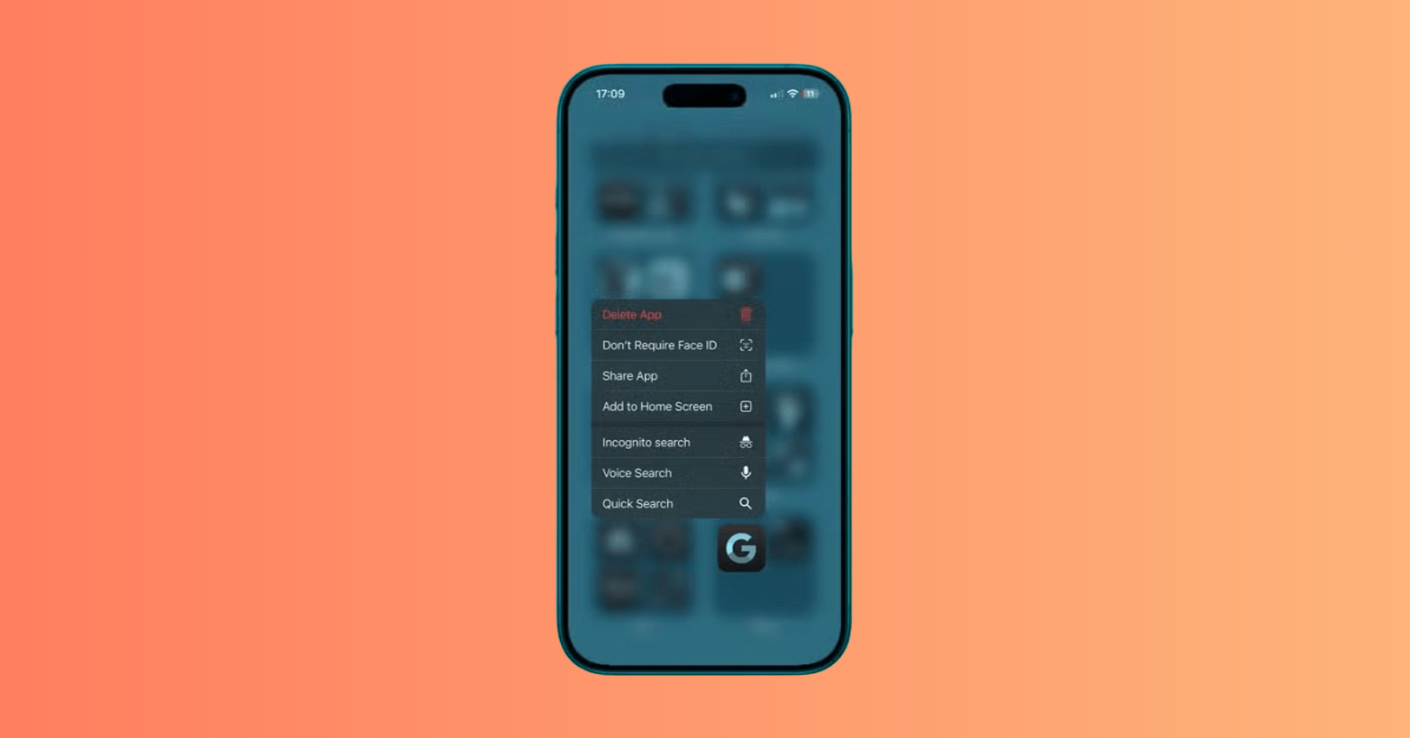
- Once you’ve authenticated again, swipe down on the App Library screen until the alphabetical list of apps appears.
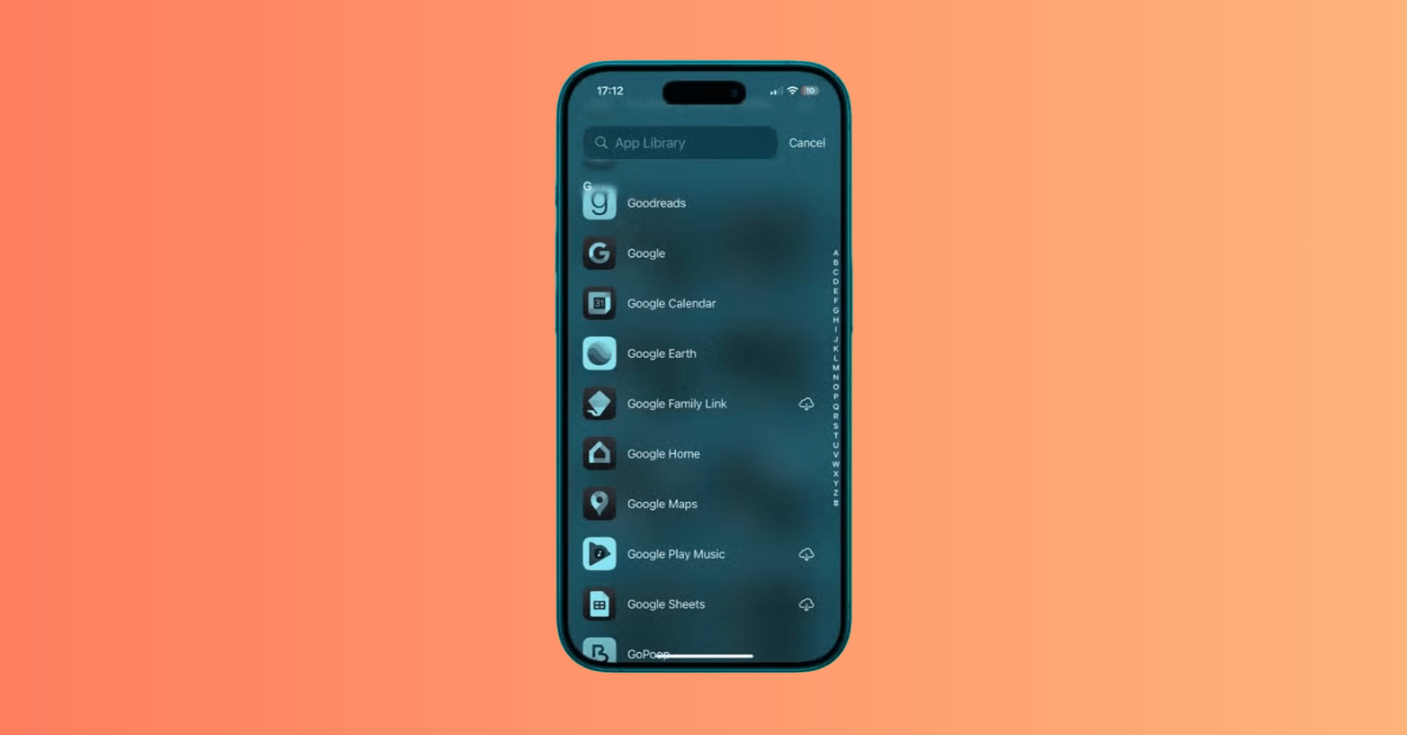
- Tap and hold the app and select Add to Home Screen.
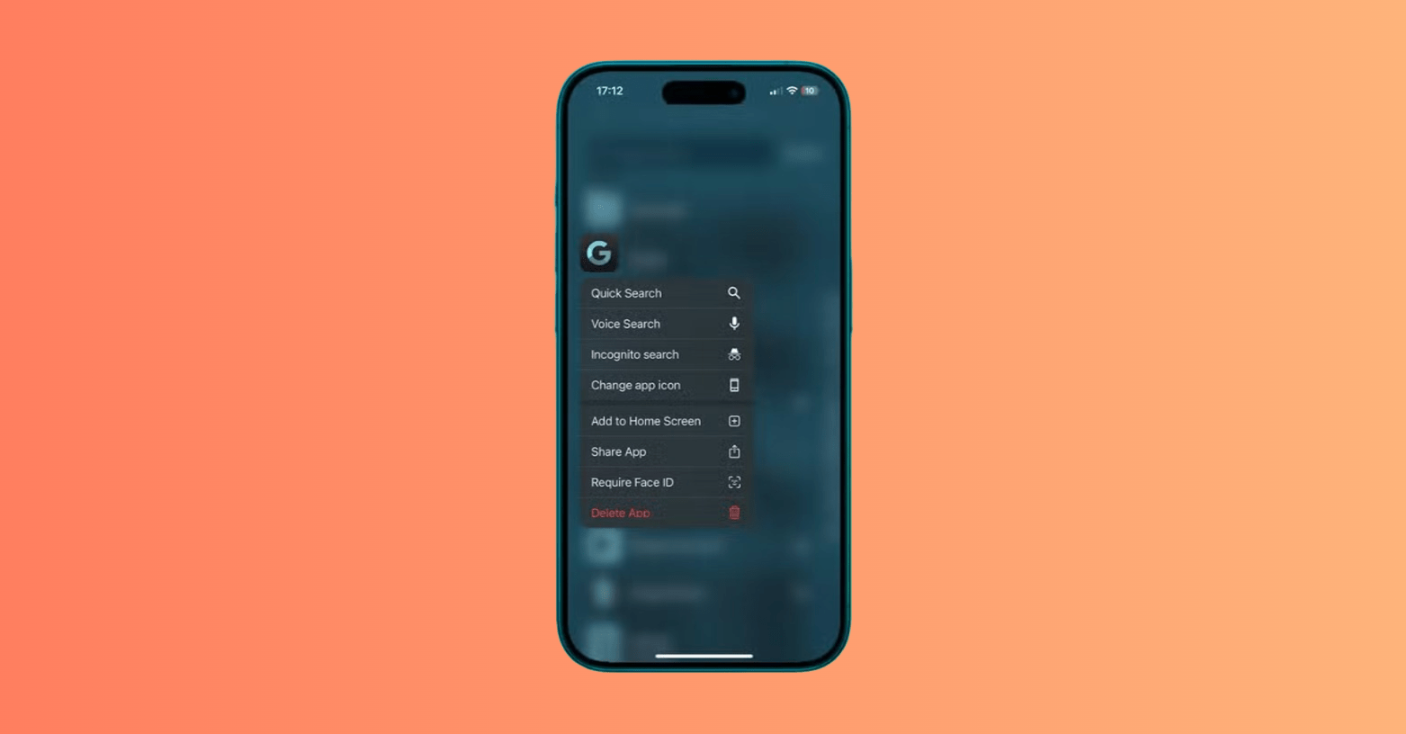
- Your app will now appear on your Home Screen.
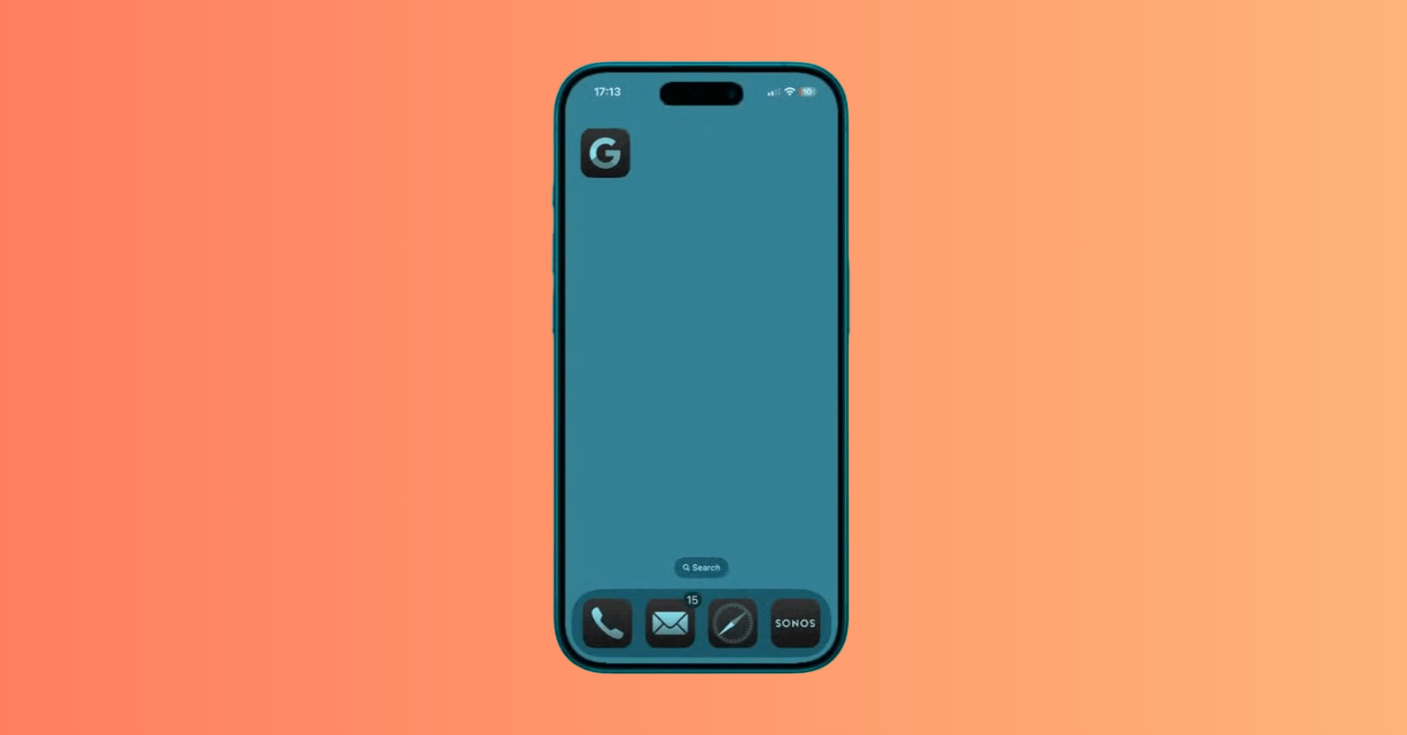
After you unhide it, the icon appears on the Home Screen and near the top of the App Library.
How to Lock Apps on iPhone in Earlier iOS Versions
Users on iOS 17 or older do not have the native locking menu that appears when touching and holding an icon. However, there are still several practical ways to limit access.
Use Screen Time Limits as a Workaround
Screen Time lets you set a one-minute daily limit for selected software. After that minute is used, access can be blocked if Block at End of Limit is enabled.
This is a workaround rather than a true native lock, but it can help limit access on older iOS versions.
Guided Access Single-Application Lock
Guided Access is a useful Accessibility feature that temporarily limits the iPhone to one application. This is helpful when a child needs to use an educational tool but should not be able to switch to Messages, the App Store, or other areas of the device.
After you start Guided Access, the user stays in that environment until you end the session with the Guided Access passcode, Face ID, or Touch ID.
Built-In Security Features Inside Individual Services
Many third-party tools include their own authentication options. For example, WhatsApp offers App Lock under its privacy settings, and many banking services offer similar Face ID or Touch ID options.
It is a good practice to check the Privacy, Security, or Account settings inside any service that stores sensitive information.
How to Put a Passcode on Apps Using Screen Time
Using Screen Time to limit access is a common method for parents. It lets you restrict selected software with a Screen Time passcode that can be different from the main device passcode.
Create a Screen Time Passcode
To begin:
- Open Settings.
- Tap Screen Time.
- Set or lock Screen Time settings with a Screen Time passcode.
- Choose a passcode that is different from the iPhone unlock passcode.
This is important if a child already knows the main device passcode.
Add Limits for Selected Software
To add a limit:
- Go to Settings > Screen Time.
- Tap App Limits.
- Tap Add Limit.
- Select a category or choose specific applications.
- Set the limit to 1 minute.
- Make sure Block at End of Limit is turned on.
This blocks the selected software after the first minute of use until the Screen Time passcode is entered or the daily limit resets.
How to Lock an App on iPhone with Guided Access
Guided Access is helpful when you want to hand your iPhone to someone without letting them leave the current screen. It prevents the person from switching to private messages, browsing your photos, or accessing other parts of the device.
Enable Guided Access
To enable Guided Access:
- Open Settings.
- Go to Accessibility.
- Tap Guided Access.
- Turn on Guided Access.
- Set a Guided Access passcode.
- Allow Face ID or Touch ID if you want to use biometric authentication to pause or end a session.
Start a Guided Access Session
To start a session:
- Open the software you want the person to stay in.
- Triple-click the side button, or the Home button on older models.
- Adjust any options, such as disabling touch, motion, keyboards, or specific screen areas.
- Tap Start.
To end the session, triple-click the side button or Home button again, then authenticate with the Guided Access passcode, Face ID, or Touch ID.
How to Lock Apps on iPhone Using Face ID or Touch ID
Biometric authentication is one of the most convenient ways to open protected software on your iPhone. It reduces the need to type a passcode while still keeping sensitive areas protected.
Native Face ID Lock for iOS 18 or Later
In iOS 18 and later, Face ID is one of the main ways to open protected software on supported iPhone models. It is integrated directly into iOS, so you do not need a Shortcuts workaround.
To use it, touch and hold an icon, tap Require Face ID, confirm, and authenticate.
Built-in Biometric Locks Inside Individual Services
If you are on iOS 17 or earlier, you may still be able to use Face ID or Touch ID inside services that offer their own lock settings.
Examples include:
- WhatsApp: Settings > Privacy > App Lock.
- Banking services: Often found under Security or Login settings.
- Password managers: Usually offer Face ID or Touch ID unlock.
- Notes: You can lock individual notes rather than the entire Notes area.
- Email and productivity tools: Some include their own biometric lock under Privacy or Security settings.
Because these settings are controlled by individual developers, the exact menu names may vary.
How to Password-Protect Apps on iPhone Using Parental Controls
Parental controls can help families manage a child’s device use and digital safety. Instead of relying only on one lock method, parents can combine Screen Time passcodes, limits, Downtime, Content & Privacy Restrictions, and Always Allowed settings.
Content and Privacy Restrictions
By enabling Content & Privacy Restrictions in Screen Time, parents can:
- Block the installation of new software.
- Prevent deletion.
- Restrict in-app purchases.
- Filter explicit content.
- Limit access to certain built-in features.
- Control account changes and privacy settings.
This helps ensure the child interacts with more age-appropriate content and settings.
Allowed Apps List
Parents can use Always Allowed to keep essential tools and contacts available during Downtime. For example, Phone, Messages, or educational software can remain available, while games, social media, or entertainment tools can be limited through Screen Time.
Method Comparison Table
| Method | iOS Version | Biometric Support | Hides Icon | Best For |
| Native Lock | iOS 18 or later | Face ID, Touch ID, or passcode | No | Everyday privacy |
| Hide & Lock | iOS 18 or later | Face ID, Touch ID, or passcode | Yes | More private downloaded software |
| Screen Time | iOS 12 or later | Passcode only | No | Parental controls and older iOS versions |
| Guided Access | Most modern iOS versions | Passcode, Face ID, or Touch ID | No | Lending the device to someone |
| Built-In Lock | Varies by service | Face ID, Touch ID, or passcode, depending on the developer | No | Banking, messaging, and password tools |
Troubleshooting App Lock Problems on iPhone
If you encounter issues while protecting installed software on your iPhone, these common fixes can help.
Require Face ID Option Missing
If you do not see Require Face ID, Require Touch ID, or Require Passcode, first make sure your iPhone is running iOS 18 or later.
Some built-in iPhone tools also cannot be locked this way, including:
- Calculator
- Camera
- Clock
- Contacts
- Find My
- Maps
- Shortcuts
- Settings
If a built-in tool cannot be protected with the native menu, consider using Screen Time, Guided Access, or its own security settings where available.
Hide and Require Face ID Option Missing
If you do not see Hide and Require Face ID, the selected software may not be eligible for hiding.
Remember:
- Built-in Apple software cannot be hidden.
- Only applications downloaded separately from the App Store can be hidden.
- In the EU, items set as the default web browser or default marketplace cannot be hidden.
Hidden Item Not Visible in App Library
If a hidden item is missing, scroll to the very bottom of the App Library and open the Hidden folder. Make sure you have authenticated to open the folder.
If it still does not appear, it may have been deleted, offloaded, or listed under Settings > Apps > Hidden Apps.
Locked Software Still Shows Information
Protected software may still send notifications, but information from locked items does not appear in notification previews, search, Siri suggestions, CarPlay, or call history.
For extra privacy, go to Settings > Notifications and set Show Previews to When Unlocked or Never.
Also review widgets, because they can show limited information on the Home Screen, Lock Screen, or Today View.
FAQ About Locking Apps on iPhone
Can I lock apps on iPhone with a password or passcode?
Yes, but iPhone typically uses your device passcode, Face ID, Touch ID, or a Screen Time passcode. There is no native way to set a unique password for each individual application.
Can I lock the Photos app on iPhone?
Yes. On iOS 18 or later, you can use the native Require Face ID, Require Touch ID, or Require Passcode feature for Photos. On older versions, the Hidden and Recently Deleted albums in Photos can be locked by default with Face ID, Touch ID, or a passcode, depending on your settings.
Do locked apps on your device still show notification content?
Protected software may still send notifications, but sensitive content is hidden from notification previews and some other system areas. For maximum privacy, go to Settings > Notifications and set Show Previews to When Unlocked or Never.
Which built-in iPhone apps can’t be locked?
Some built-in iPhone tools can’t be protected with the native locking feature, including Calculator, Camera, Clock, Contacts, Find My, Maps, Shortcuts, and Settings. If you can’t lock a built-in tool, use Screen Time or Guided Access as an alternative.
Can built-in Apple apps on your iPhone be hidden?
No. Software that comes installed with iOS cannot be hidden. Only applications downloaded separately from the App Store can be moved to the Hidden folder.
Do I need Face ID, Touch ID, or a passcode to open protected software?
Yes. When you enable protection for a selected item, your iPhone requires Face ID, Touch ID, or a passcode to open it. After you close it, the protection returns automatically, so you need to authenticate again next time.
Can widgets reveal private information on iPhone?
Yes, widgets can show current information from software on the Home Screen, Lock Screen, or Today View. Review or remove widgets that may expose private details. The same general approach also applies to iPad, although feature availability can vary by iPadOS version and device model.

Take a short quiz to find out what your everyday choices say about your parenting style
When your child is curious about something new, what’s your instinct?
Take a short quiz to find out what your everyday choices say about your parenting style
“Can I download this app?” What happens next?
Take a short quiz to find out what your everyday choices say about your parenting style
When it comes to rules at home, which sounds most like you?
Take a short quiz to find out what your everyday choices say about your parenting style
If you could give your child one life skill today, what would you pick?
Take a short quiz to find out what your everyday choices say about your parenting style
Your child gets to choose what to watch. What would your ideal setup look like?
Take a short quiz to find out what your everyday choices say about your parenting style
Pick your parenting superpower ✨