Kid-Friendly Video Editing Apps: Empowering Young Creators

 Discover a Free Education Video App for Kids
Pastory uses AI to personalize educational video content based on your child’s interests and personality. Safe, engaging, and built for curious young minds. Sign up now to stay updated and enjoy early access with a free trial
Visual content has become a common part of how children learn, communicate, and express ideas. Teaching kids basic editing skills early supports creative thinking, confidence, and practical digital literacy that remains relevant in school and beyond. Choosing the right tool for young users requires attention to safety, clarity of interface, and real educational value. Well-designed solutions help children assemble a complete video and explore the fundamentals of visual storytelling without unnecessary complexity.
Why Video Editing for Kids?
Creative production activities support a wide range of developmental outcomes that go beyond assembling simple clips. Research published by Digital Promise shows that students involved in media-based creation demonstrate stronger communication abilities and more consistent learning results across subjects. For children approaching 2025, the ability to work with visual formats and understand basic edit logic is becoming a practical competency linked to academic performance and future-ready skills.
Boost Creativity
Video editing naturally encourages creative expression by combining visual storytelling, music selection, and narrative structure. Kids who want to create engaging content learn to think outside the box, experimenting with different transitions, effects, and storytelling techniques. This creative process helps kids to experiment and develop problem-solving skills as children figure out how to convey their ideas effectively through visual media.
Develop Digital Skills
Modern video editing software for kids introduces them to essential digital literacy concepts including file management, basic graphic design principles, and multimedia production workflows. These foundational skills translate directly to other technology applications, making kids more confident and capable digital citizens.
Storytelling Encouragement
Video production requires kids to make narratives with clear beginnings, middles, and ends. This process naturally develops their storytelling abilities, which research from the National Writing Project suggests can improve overall writing skills and comprehension abilities. It encourages kids to craft their own tales.
Confidence Building
Completing a simple video project gives children a clear sense of achievement and ownership over the result. Sharing finished work with family or friends often leads to supportive feedback, which strengthens self-confidence and motivation to continue learning basic edit techniques through further experimentation.
What Makes a Video Editing Tool Kid-Friendly?
Not all video editing apps are created equal when it comes to young users. Several key factors distinguish truly kid-friendly options from adult-oriented professional software. When you’re looking for the best video, consider these points.
Intuitive Interface
The best video editing app for kids features drag-and-drop functionality, clear icons, and simplified menus. Complex professional video editing software can overwhelm younger users, while well-designed kid-friendly interfaces make the editing process with its rich features accessible and enjoyable. It simplifies the editing process for young minds.
Safety Features
Safe video editing apps include robust privacy controls, content filtering, and secure sharing options. Parents should look for apps that don’t require social media integration or that provide supervised sharing environments where kids can showcase their work safely.
Cost
Many well-designed creative tools provide free versions with enough functionality for introductory projects. This approach allows families to explore a video workflow without financial pressure while children gradually build skills, test interests, and learn basic edit principles at a comfortable pace.
Creative Tools
Kid-friendly video editing software should include engaging features like animated stickers, fun transitions, music libraries, and special effects that capture children’s imagination while teaching fundamental editing concepts. These are ideal for kids to try.
No Ads
Advertisement-free environments protect kids from inappropriate content and distracting promotional materials that can interrupt the creative process or expose children to unsuitable material.
Top Video Editing Apps for Kids
The list below brings together tools that suit young creators at different stages, from simple starting options to more advanced solutions designed for growing skills. The selection reflects widely used platforms that support learning progression, creative confidence, and age-appropriate functionality without unnecessary complexity.
| App Name | Age Range | Platform | Price | Key Features |
| Animotica | 12+ | Windows | Free/Paid | Simple interface, effects library |
| CapCut | 10+ | Mobile/Desktop | Free | TikTok integration, trending effects |
| Filmora | 12+ | All platforms | Free/Paid | Professional features, tutorials |
| iMovie | 8+ | Mac/iOS | Free | Apple ecosystem integration |
| Stop Motion Studio | 6+ | All platforms | Free/Paid | Animation focus, frame-by-frame |
Animotica
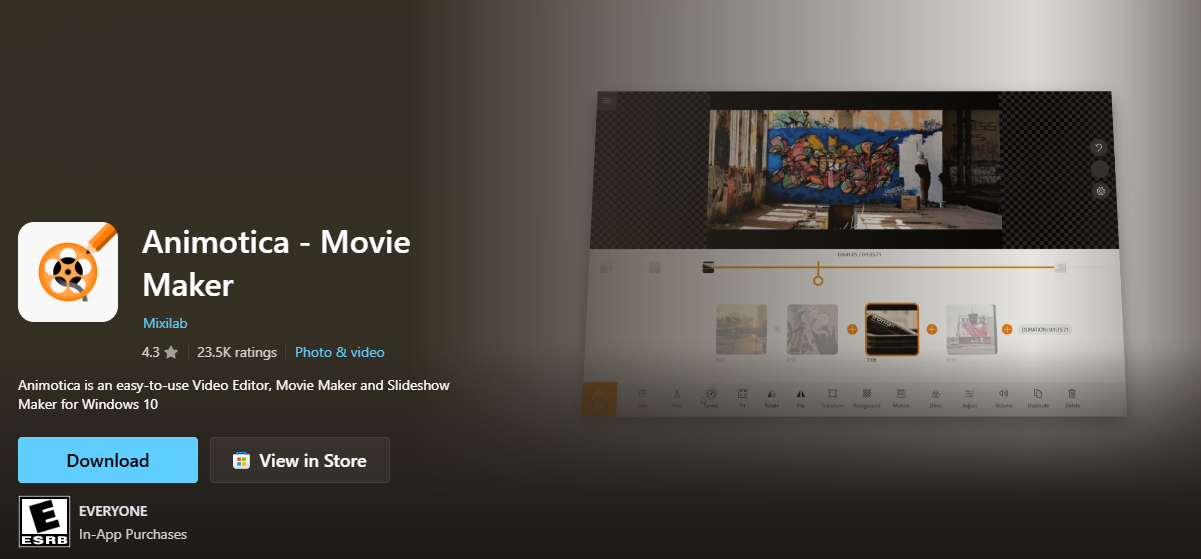
Animotica stands out as a fantastic video editor for kids using Windows devices. This user-friendly video editor offers a clean interface that doesn’t overwhelm young users while providing essential editing capabilities. The app lets kids experiment with various effects, transitions, and text overlays without requiring extensive technical knowledge.
- Key Features:
- Simple drag-and-drop interface,
- extensive effects library,
- pre-set transitions,
- easy text overlays.
- Link: Animotica (Microsoft Store)
CapCut
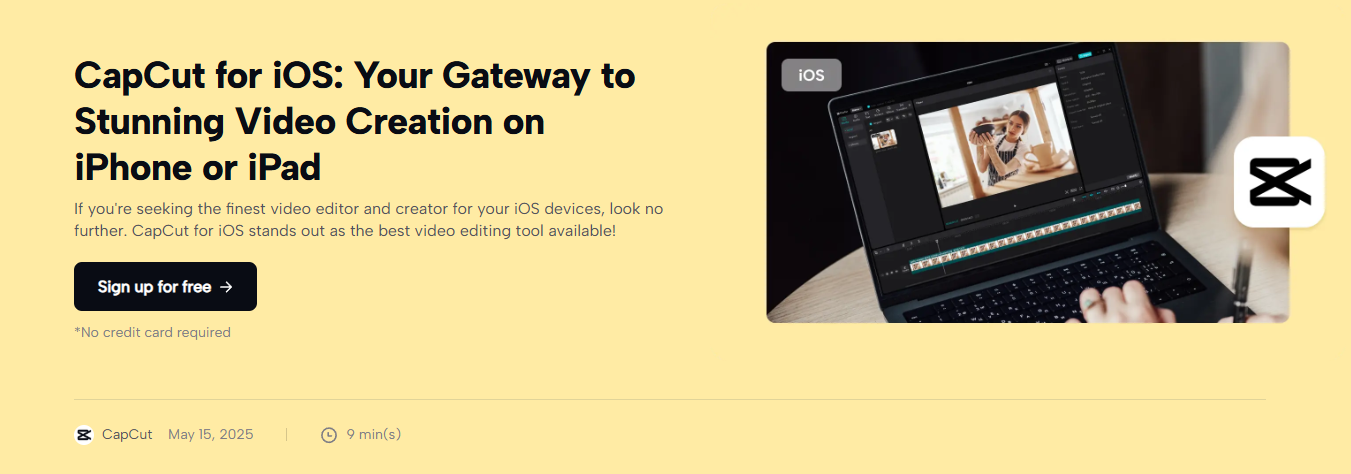
CapCut has gained strong traction among younger audiences, especially those drawn to social platforms and short-form formats. The free tool offers popular effects and filters that mirror current online trends, which makes the creative process feel familiar and motivating for older children and teenagers.
Direct integration with TikTok increases relevance for this age group, allowing fast publishing and smooth workflows. Built-in functions enable quick assembly of polished content, helping users complete a single video efficiently while applying basic edit techniques without steep learning barriers.
- Key Features:
- Trending effects and filters,
- extensive music library,
- seamless TikTok integration,
- multi-track editing,
- video stabilization.
- Link: CapCut
Filmora

Wondershare Filmora represents an excellent bridge between simple editing tools and professional video editing software. While designed for general audiences, its intuitive workflow makes it suitable for kids who have mastered basic editing skills and want to explore more sophisticated editing techniques. It’s a feature-rich video editor.
- Key Features:
- User-friendly interface with advanced features,
- green screen effects,
- motion tracking,
- vast media library.
- Link: Filmora (App Store)
iMovie

Apple’s iMovie continues to be a reliable option for children working on Mac or iOS devices. The free solution delivers polished results while preserving a clear, approachable structure that younger users can understand without guidance.
Tight integration across Apple hardware simplifies file access, sharing, and continuation of projects between devices, which suits households already using this ecosystem. The interface supports creative experimentation and helps children complete a finished video without unnecessary technical steps.
- Key Features:
- Hollywood-style trailers,
- beautiful movie themes,
- Apple ecosystem integration,
- 4K video support.
- Link: iMovie (App Store)
Stop Motion Studio

Perfect for kids interested in animation, Stop Motion Studio enables kids to make frame-by-frame animations using physical objects, drawings, or digital assets. This specialized approach to video production helps kids learn fundamental animation principles while developing patience and attention to detail.
- Key Features:
- Frame-by-frame animation,
- onion skinning,
- integrated sound effects,
- green screen capabilities.
- Link: Stop Motion Studio (App Store)
Toontastic 3D
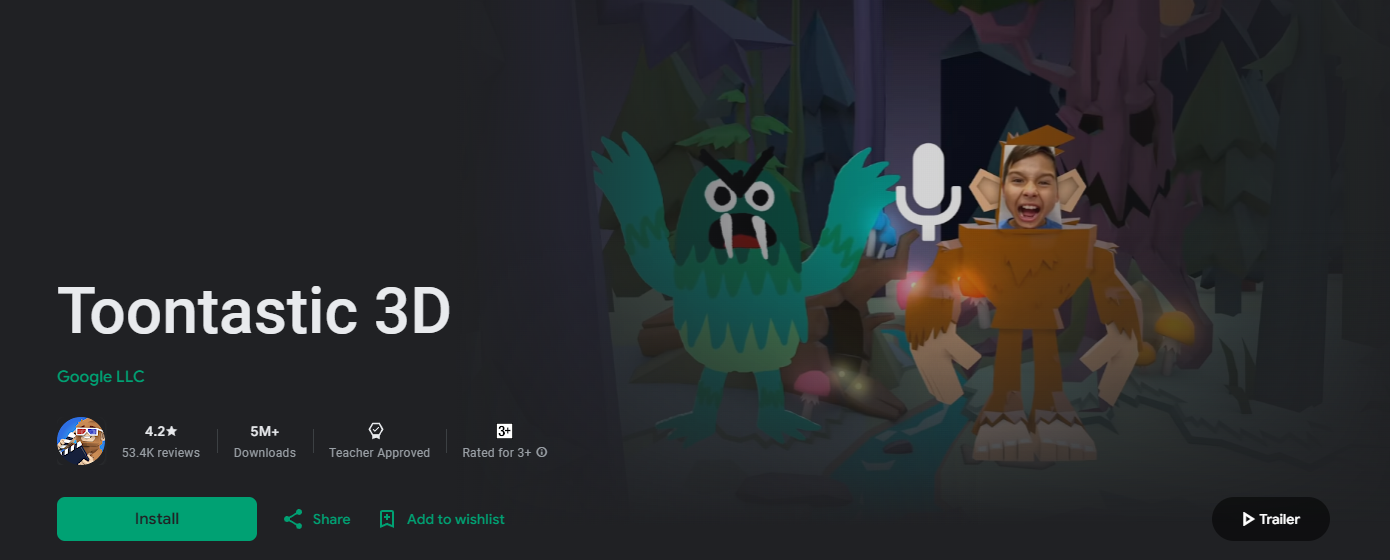
Google’s Toontastic 3D is specifically designed for kids who want to create animated stories. This app combines video creation with storytelling education, making it an excellent choice for younger children who are just beginning to explore video editing basics.
- Key Features:
- 3D animated storytelling,
- character creation,
- pre-built story arcs,
- voice recording.
- Link: Toontastic 3D (Google Play)
InShot

InShot offers a good balance between simplicity and functionality, making it suitable for kids who want to create polished video clips without overwhelming complexity. The app includes simple editing tools along with music and effect libraries that appeal to young creators. It also allows for adjusting video speed.
- Key Features:
- Easy video trimming and cutting,
- music and sound effects,
- filters and effects,
- Instagram-friendly aspect ratios,
- video speed adjustment.
- Link: InShot (App Store)
Adobe Premiere Rush

While more advanced than other options, Adobe Premiere Rush provides a simplified version of professional video editing tools that let older kids grow into. The app offers cloud synchronization and cross-platform compatibility, making it ideal for families with multiple devices for editing on one device.
- Key Features:
- Cross-device sync,
- simplified timeline,
- royalty-free audio library,
- easy social sharing,
- video stabilization.
- Link: Adobe Premiere Rush (App Store)
KineMaster

KineMaster offers advanced production capabilities within a mobile-friendly environment. The platform suits children who already understand basic assembly principles and are ready to work with more detailed timelines, layered elements, and precision controls.
Expanded functionality encourages skill progression and experimentation with complex features while remaining accessible on handheld devices. This balance makes the tool a practical step forward for young creators seeking greater control and more refined results without transitioning to desktop software.
- Key Features:
- Multi-track editing,
- precise trimming and cutting,
- blend modes,
- chroma key (green screen).
- Link: KineMaster (App Store)
Icecream Video Editor

Icecream Video Editor prioritizes clarity and ease of use while covering core production functions. The desktop format suits children who are more comfortable working on computers and prefer a larger screen with precise control.
A clean interface and limited toolset reduce distraction, helping beginners focus on basic sequencing and trimming skills. This structure supports early learning stages and builds confidence before moving on to more complex creative environments.
- Key Features:
- Basic editing (trim, cut, merge),
- add text and music,
- simple interface.
- Link: Icecream Video Editor (Microsoft Store)
Microsoft Photos

Microsoft Photos includes built-in creative functions suited for children at the very beginning stage. Availability by default on Windows computers removes setup barriers and allows immediate exploration without additional costs.
The simplified workspace introduces core video concepts such as trimming, sequencing, and adding music in a controlled environment. This makes the solution a practical free choice for families seeking a safe starting point before moving to more advanced platforms.
- Key Features:
- Built-in Windows editor,
- basic trimming and cutting,
- add music and text,
- 3D effects,
- adjusting video speed.
- Link: Microsoft Photos (Microsoft Store)
Magisto
Magisto relies on artificial intelligence to automate much of the assembly process, reducing the need for manual adjustments. This model works well for younger children who may find traditional file-based workflows confusing or overwhelming.
Automation allows users to achieve a polished video result with minimal steps, supporting creative confidence without requiring prior experience. The simplified logic lowers entry barriers and helps maintain focus on storytelling rather than technical details.
- Key Features:
- AI-powered automated editing,
- pre-designed templates,
- extensive music library,
- facial recognition.
- Link: Magisto (Google Play)
Shotcut
As an open-source video editor, Shotcut provides professional-level features without cost restrictions. While it has a steeper learning curve than other options, it’s perfect for kids who want to explore advanced editing techniques without purchasing expensive software. It’s one of the best video editing software choices for older, ambitious kids.
- Key Features:
- Free and open-source,
- wide format support,
- advanced editing features (color correction, filters),
- multi-track.
- Link: Shotcut (Microsoft Store)
FlexClip
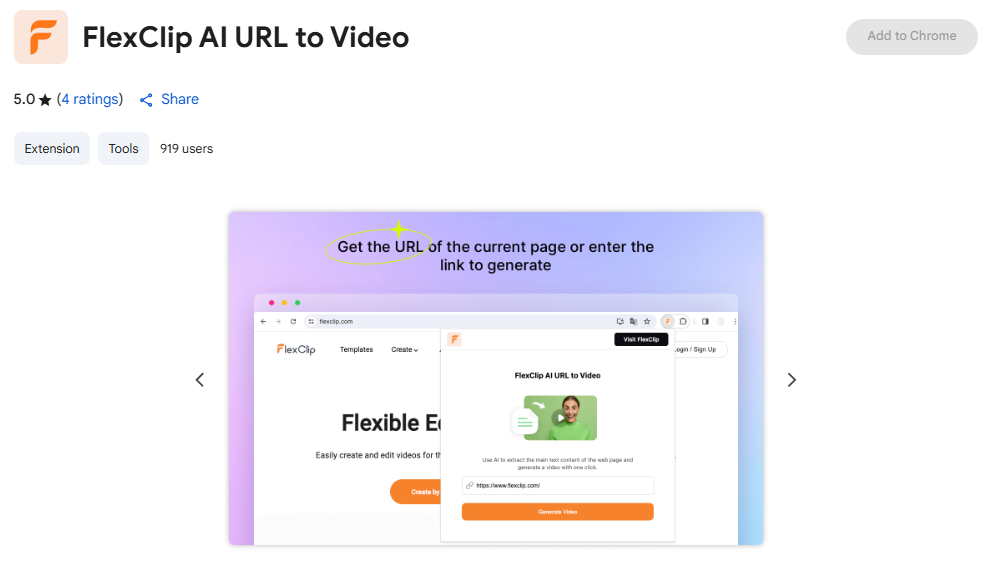
FlexClip operates as a browser-based video editing tool, eliminating the need for software downloads. This accessibility makes it convenient for kids to start editing videos on any device with internet access. It’s great for kids who prefer online platforms.
- Key Features:
- Browser-based editor,
- extensive media library,
- pre-made templates,
- easy text animation.
- Link: FlexClip (Chrome Web Store – Extension)
Veed

Veed provides a browser-based environment built around accessibility and straightforward workflows. The service includes practical functions such as automatic subtitle generation and simplified export options, which resonate with young creators working on short-form content.
Online access removes installation barriers and supports quick project completion across devices. The streamlined structure helps users prepare a finished video once, then share results easily without navigating complex publishing steps.
- Key Features:
- Online video editing,
- automatic subtitle generation,
- screen recording,
- easy sharing.
- Link: Veed.io (Website – web-based tool)
Choosing the Right Video Editor
Selecting the most appropriate video editing app requires careful consideration of several factors that align with your child’s specific needs and circumstances. You’ll need to find a video editing app that fits their style.
Assess Child’s Age
Younger kids (ages 6-9) benefit from apps with simple interfaces and guided tutorials, while older kids (ages 10+) can handle more complex features and professional-style workflows. Consider your child’s technical comfort level alongside their chronological age. This helps encourage your kids in their creative journey.
Consider Creative Goals
Kids interested in animation may prefer specialized tools for kids like Stop Motion Studio, while those focused on social media content might find CapCut more appealing. Discover the best video editing tool by understanding your child’s creative interests helps narrow down the most suitable options.
Device Compatibility
Ensure the chosen video editing app works well on your family’s devices. Some apps work better on tablets due to touch interfaces, while others are optimized for desktop computers with more processing power. This ensures editing on one device is smooth.
Read Reviews
Parent reviews and educational technology evaluations provide valuable insights into how apps mentioned perform in real-world family settings. Look for feedback specifically from other parents about safety, ease of use, and educational value.
FAQ: Common Questions From Parents and Young Creators
What tools help a child start content creation without technical barriers?
Platforms designed for kids and beginners focus on intuitive workflows that support a simple video maker logic without complex timelines. Such environments allow kids create stories independently while learning the basics of digital media production.
Can these tools support school projects and creative assignments?
Many solutions are suitable for school projects, enabling learners to combine text, images, and sound into structured presentations. Functions such as voiceovers help transform academic ideas to life while strengthening communication skills.
How can children enhance their videos without advanced skills?
Built-in options make it easy to add transitions, adjust pacing, and assemble scenes smoothly. As a result, young users can enhance their videos and produce professional-looking videos with minimal guidance.
Are there safe options that protect personal data?
A safe and simple environment depends on a transparent privacy policy, offline functionality, and controlled sharing. These elements ensure kids and beginners remain protected while working with video and photo materials.
Which solutions are considered a good choice for kids on different devices?
For families using Windows, windows movie maker remains a familiar reference point, while newer platforms provide broader functionality. Filmora also attracts attention because filmora offers structured templates and guided workflows, making it a popular video option among older children.
What should parents consider when choosing the right platform?
Choosing the right solution depends on age, creative goals, and device compatibility. Some tools allow kids create high-quality videos, create high-quality outcomes, and even publish videos directly, supporting confident content creation and the ability to make videos effortlessly.

Take a short quiz to find out what your everyday choices say about your parenting style
When your child is curious about something new, what’s your instinct?
Take a short quiz to find out what your everyday choices say about your parenting style
“Can I download this app?” What happens next?
Take a short quiz to find out what your everyday choices say about your parenting style
When it comes to rules at home, which sounds most like you?
Take a short quiz to find out what your everyday choices say about your parenting style
If you could give your child one life skill today, what would you pick?
Take a short quiz to find out what your everyday choices say about your parenting style
Your child gets to choose what to watch. What would your ideal setup look like?
Take a short quiz to find out what your everyday choices say about your parenting style
Pick your parenting superpower ✨